Zoom, fit and full screen
A picture opens fitted to the window. Zoom in on a detail, look at it pixel for pixel, or let it fill the whole screen.
Zooming in and out
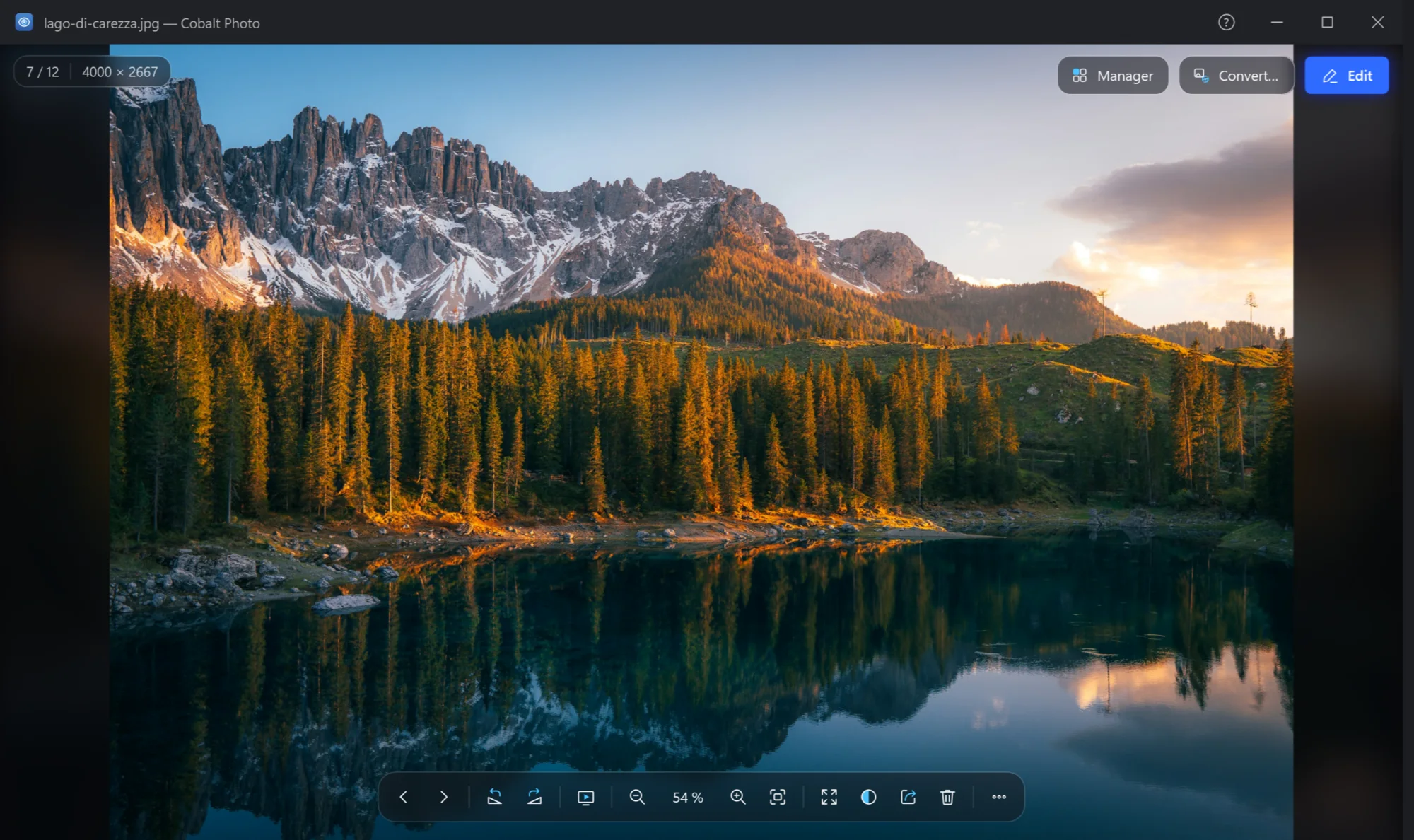
- Zoom out. A step smaller. −
- The zoom now. Click it for 100 %, click again to fit the window. 1
- Zoom in. A step larger. +
- Fit. The whole picture in the window again. 0
- Full screen. F F11, or a double click on the picture.
- Background. What is behind the picture: see below.
- Ctrl with the mouse wheel zooms in and out where the pointer is, so the detail you point at stays under it. Set Settings → Viewer → Mouse wheel to Zoom to zoom with the wheel alone (then Ctrl with the wheel goes to the next picture).
- The steps go from 2 % to 3200 %; an SVG drawing, sharp at any size, goes on to 25 600 %.
- Drag a picture larger than the window to move around in it.
- From 200 % up, each pixel shows as a sharp square instead of being smoothed: what is really in the file.
- 100 % (1) shows one pixel of the picture on one pixel of your screen: the way to judge sharpness and noise.
Sharp when zoomed in
To open at once, the viewer first reads a picture as large as your screen needs. Zoom in past that, and it reads the whole picture underneath, so a 50-megapixel photo is as sharp at 100 % as the file is.
A camera's RAW file opens with the picture the camera saved inside it, which is quick. Some cameras save that picture smaller than the shot: zoom in past it and Cobalt Photo develops the whole shot from what the sensor recorded, which takes a second or more. Settings → Editor → Develop RAW files turns this off, if you would rather keep to the camera's picture.
Small pictures
A picture smaller than the window — an icon, a thumbnail, an old photo — is shown at its actual size, sharp, in the middle. To have it enlarged to fill the window instead, choose Settings → Viewer → Small pictures → Fill the window.
Full screen
F, F11, the full screen button or a double click on the picture puts it alone on the whole screen, with no title bar and no taskbar. Everything works as in the window: the keys, the wheel, the plate and the bar, which step aside after a moment as they do in the window. Esc or F brings the window back.
The background
The background button in the bar chooses what is around the picture:
| Background | Good for |
|---|---|
| As the theme | The window's own dark or light colour. As it comes. |
| Black | Photos at night, and anything you want to look at without distraction. |
| White | Scans, documents and drawings made on white. |
| Squares, to see transparency | Logos, icons and PNG files: where the picture is transparent the squares show through, so a black logo is not lost on a dark window. |
| The picture's colours | The picture itself, enlarged and blurred, fills the space around it — the way phones show photos. |
The choice is kept for the next pictures and the next time.