Stars, labels and metadata
Stars and colour labels with one key, written into the photos themselves; titles, tags, dates and places for many photos at once; and, before sharing, everything personal taken out.
Stars, labels and rejects
In the manager, choose one picture or many, then:
| Keys | What they do |
|---|---|
| 1 … 5 | That many stars; 0 none |
| 6 7 8 9 | A colour label: red, yellow, green, blue; the same key again takes it off |
| X | Rejected, or not any more |
The same are in the right-click menu under Rating and Label (with purple too). They are written into the file, as Adobe Lightroom, Bridge and Windows' own Properties read them, so they go wherever the photo goes. Stars show at the bottom of the thumbnail, a label as a coloured stripe and dot — and the search finds them: rating:>=4, label:red.
Edit metadata
Choose the pictures and press Ctrl+M, or right-click → Metadata → Edit metadata…
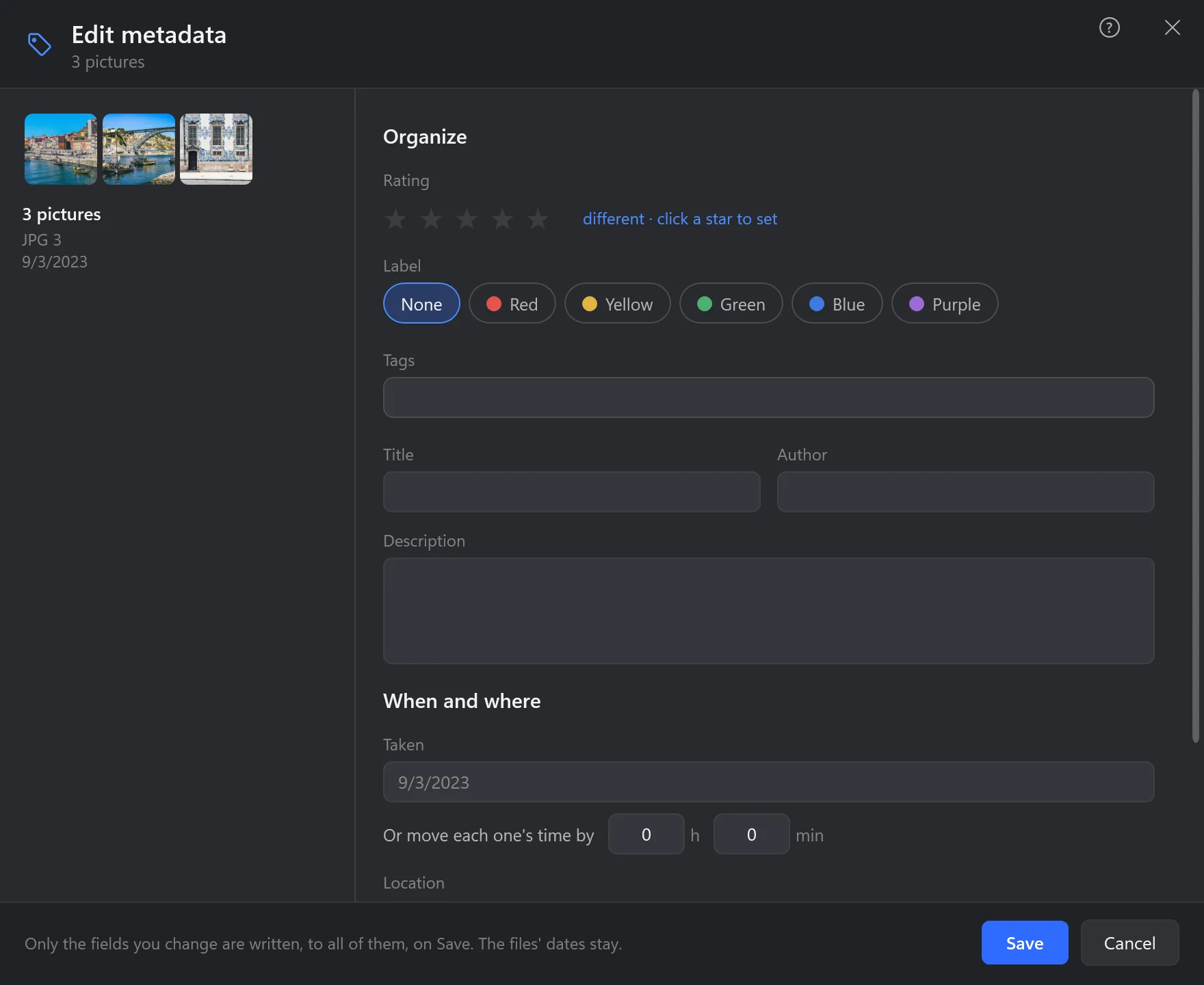
- The pictures. Which ones you are changing: their thumbnails, how many, their formats and dates.
- Organize. Rating, label, tags — the folder's most used tags are offered — title, author and description. Where the pictures differ, the field says different: leave it, and each keeps its own.
- When and where. The date taken — or move each one's time by hours and minutes, for a camera left on the wrong time zone — and the location: a town, or coordinates like
41.4036, 2.1744; Remove takes it off. - What Save does. Only the fields you change are written, to all of them; the files' own dates stay.
- Save. Written into each file (XMP); a camera's RAW file, a HEIC or a TIFF gets an
.xmpfile beside it instead, as photo apps expect.
With one picture, All metadata at the bottom lists every field the file has — camera, lens, exposure, software, GPS — with a search box to find one.
Remove metadata
A photo from a phone says where it was taken, to a few metres, and often which phone it was. Before you post or send photos, right-click them → Metadata → Remove metadata…, and choose:
| What to remove | |
|---|---|
| Everything personal | The location, the camera and its serial number, the owner and copyright, the software and edits, comments, title and tags, and the small copy of the photo hidden inside the file. |
| Only the location | Where it was taken; the rest stays. |
The orientation, the colours and the date taken always stay, so the photos look the same and sort by date as before. The card shows, for the pictures chosen, which of these they have at all. Then where the result goes:
- Clean copies next to them —
photo (clean).jpg; the originals keep everything, their place on the map too. - Clean the files themselves — Ctrl+Z puts it all back while the manager is open.
The pixels are not touched — nothing is encoded again. A HEIC, TIFF or RAW file cannot be cleaned as it is: a clean JPG copy is saved for it.