The Convert window
Pictures in on the left, a format in the middle, its options on the right — and before you start, how much space the result will take and where it goes.
Open Convert with Convert… in the viewer or the manager (Ctrl+E, with the pictures chosen), or ☰ → Convert… in the manager; then drop more pictures on it, from anywhere.
Every part of it
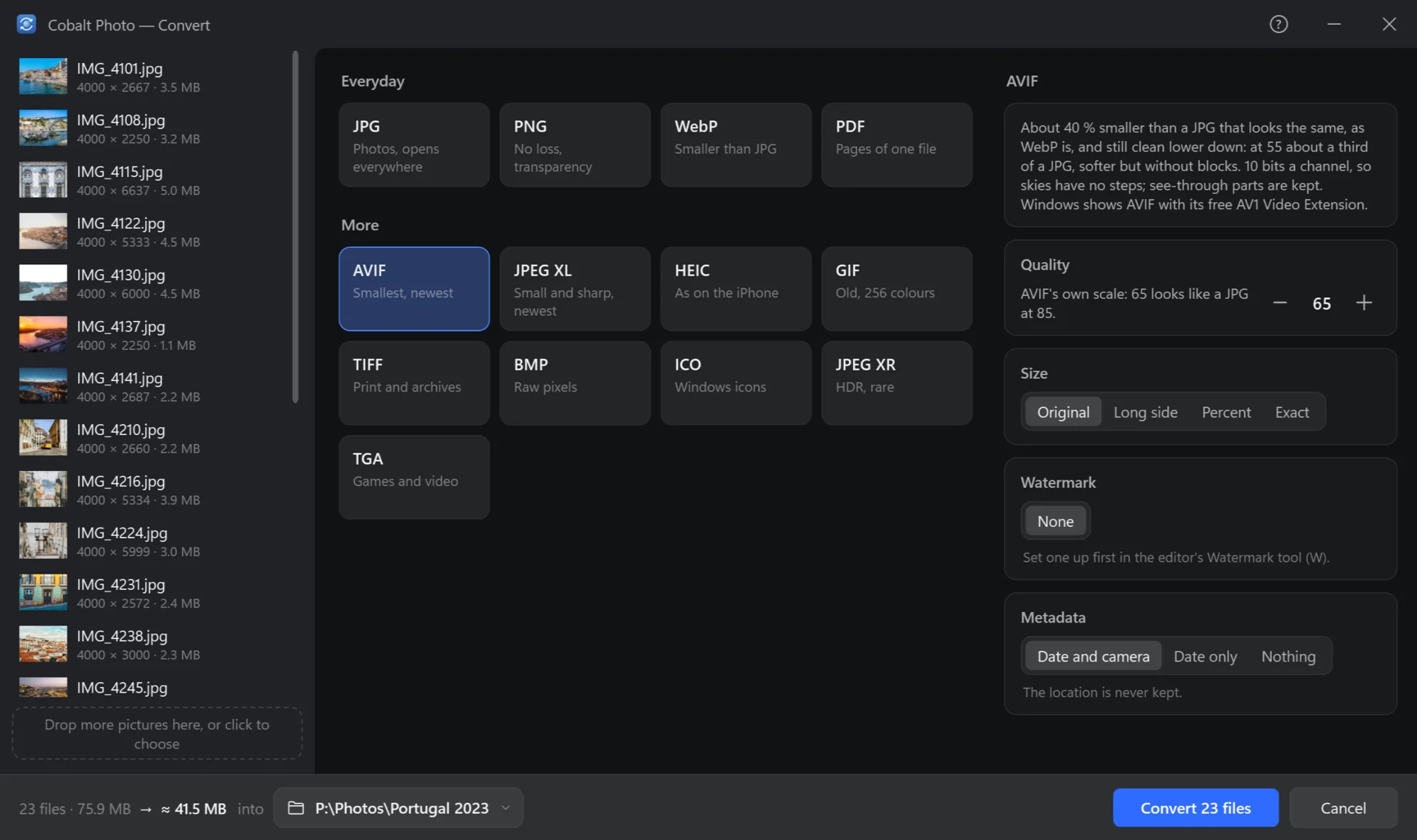
- The pictures, each with its size in pixels and in bytes. Point at one and its × takes it off the list.
- More pictures: drop them here, or click to choose them.
- Everyday formats. JPG, PNG, WebP and PDF — what most pictures need.
- More formats. AVIF, JPEG XL, HEIC, GIF, TIFF, BMP, ICO, JPEG XR, TGA — each with what it is for. Formats and quality.
- About the format chosen: what it is good at, and what opens it.
- Quality. Lower is smaller; each format's own scale is said under it.
- Size. As they are, a long side, a percent, or an exact size — see below.
- Watermark. The one you set up in the editor, on every picture.
- Metadata. Date and camera, date only, or nothing. The location is never kept.
- How much. The pictures, their size now, and about how much they will take after.
- Where they go. Next to the originals, or a folder — see below.
- Convert — the button then shows how far it has got.
Size
| Size | What it makes |
|---|---|
| Original | As they are. |
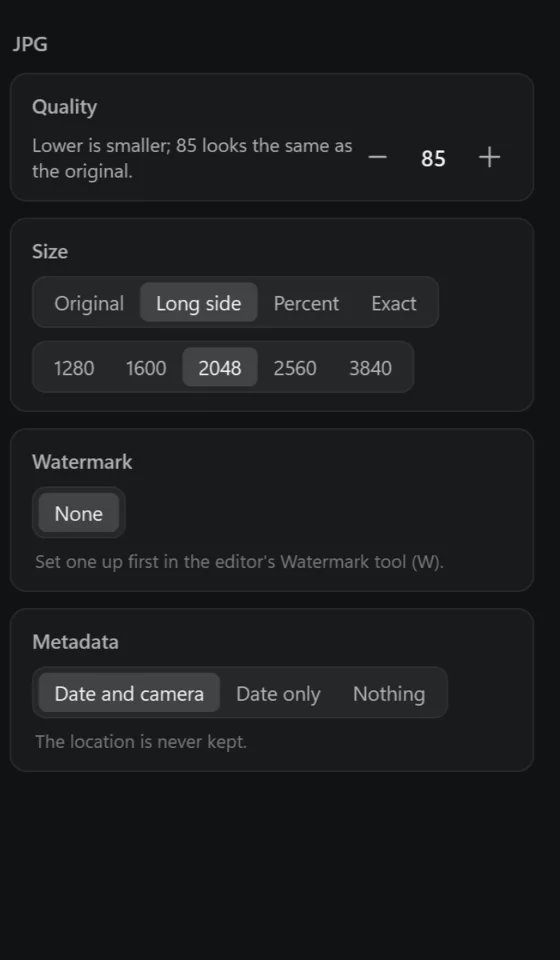
| Long side | The longer side 1280, 1600, 2048, 2560 or 3840 pixels, the shape kept; a smaller picture is not made bigger. |
| Percent | A share of each picture's size. |
| Exact | Exactly so wide and so high. If the shape differs: Crop to fill — cut from the middle, for avatars and previews; Fit inside — the shape kept, one side may come out shorter; Stretch — pulled to it, squashed if the shape differs. Exact makes a smaller picture bigger. |
Made smaller, pictures get a light sharpening after it — Settings → General → Sharpen when made smaller.
Watermark and metadata
My watermark puts on every picture the watermark set up in the editor's Watermark tool — text or a logo, where, how big. Without one set up yet, Convert says so.
Metadata: Date and camera keeps when it was taken and with what; Date only keeps less; Nothing keeps nothing. Whichever you choose, the place a photo was taken is left out — a converted picture is usually one to share.
RAW files
With a camera's RAW files in the list, a RAW Files card asks how to convert them:
- As the camera made it — the picture the camera put inside the RAW file, with its colours and style. At once.
- Develop anew — from the sensor's data: the whole frame, more left in bright skies and dark corners, as a TIFF in 16 bits. A second or more each; the colours are neutral, not the camera's style. Then: White balance as shot or auto, Less noise off, low or strong, Colours neutral or vivid, and Bring back a bright sky — what the camera's picture lost in the brightest parts.
A shot with the camera's JPEG beside its RAW file: as the camera made it, that JPEG is converted; developed anew, the RAW file.
Where the files go
The button at the bottom says where, and changes it:
- Next to the originals — each picture beside its own, with its new extension. From RAW files into a folder of the format's name there (
JPEG), so it is not taken for the camera's JPEG. - A folder… — all of them into one folder you choose; the folders you used lately are offered too.
- Show the folder — the folder in Explorer.
A name already taken is never written over: the new file gets a number. When it is done, Convert says how many were saved and where.