Draw, text and stickers
Point at something with an arrow, write over a photo, add a sticker. Each one stays a thing of its own — move it, change it or remove it any time before you save.
All three work the same way: put something on the photo, and it is chosen — drag it to move it, a corner to resize it, the round handle to turn it; Del removes it. Click it again later to change it; its tool's panel shows its settings.
Draw
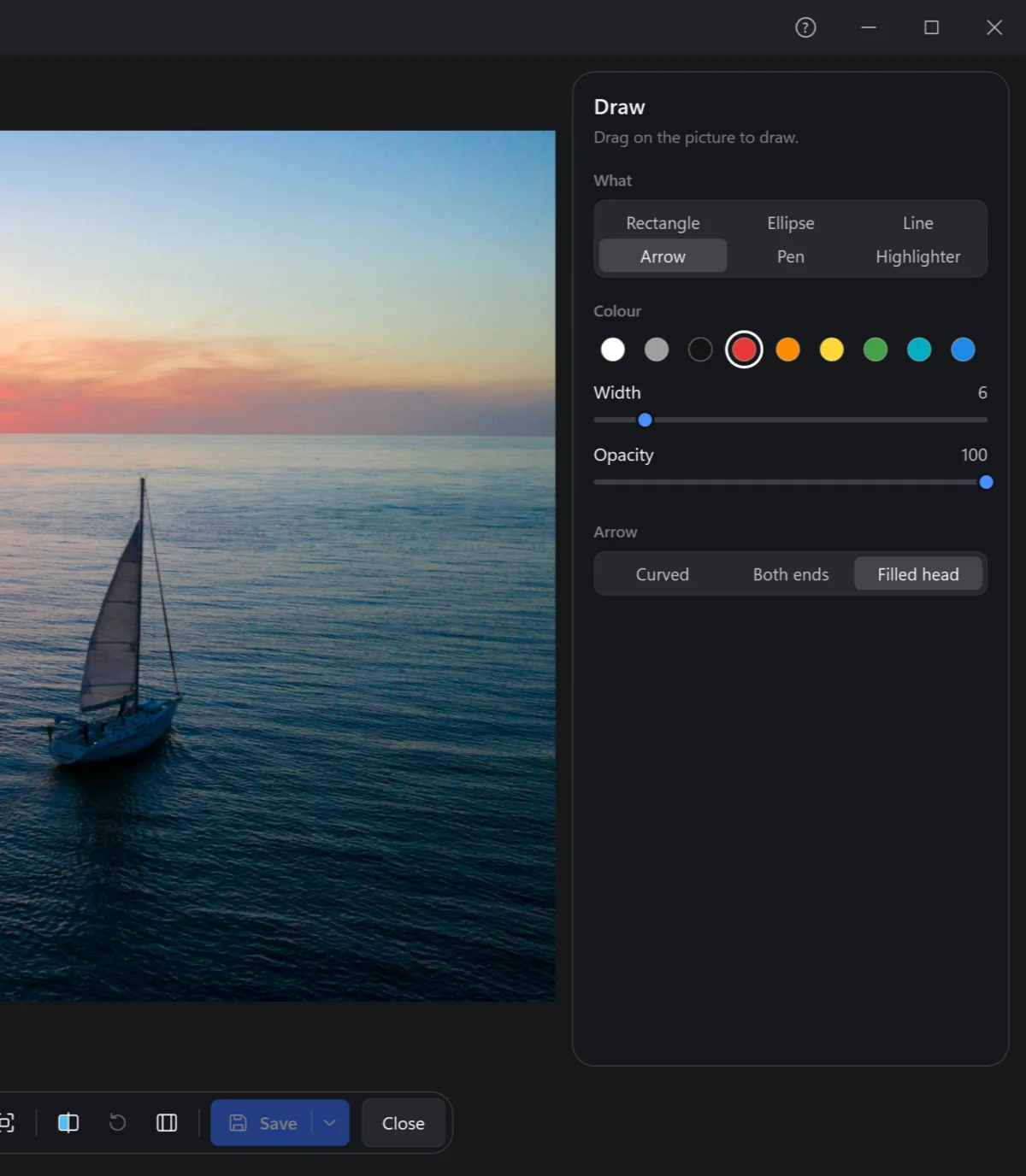
D, then drag on the photo. What to draw:
- Rectangle, Ellipse — with a Fill: none, a colour, or half see-through.
- Line, Arrow — an arrow curved, with both ends, a filled head. Drag a line's end to move just that end.
- Pen — by hand; Highlighter — by hand, see-through, as on paper.
Then its width, opacity and colour.
Text
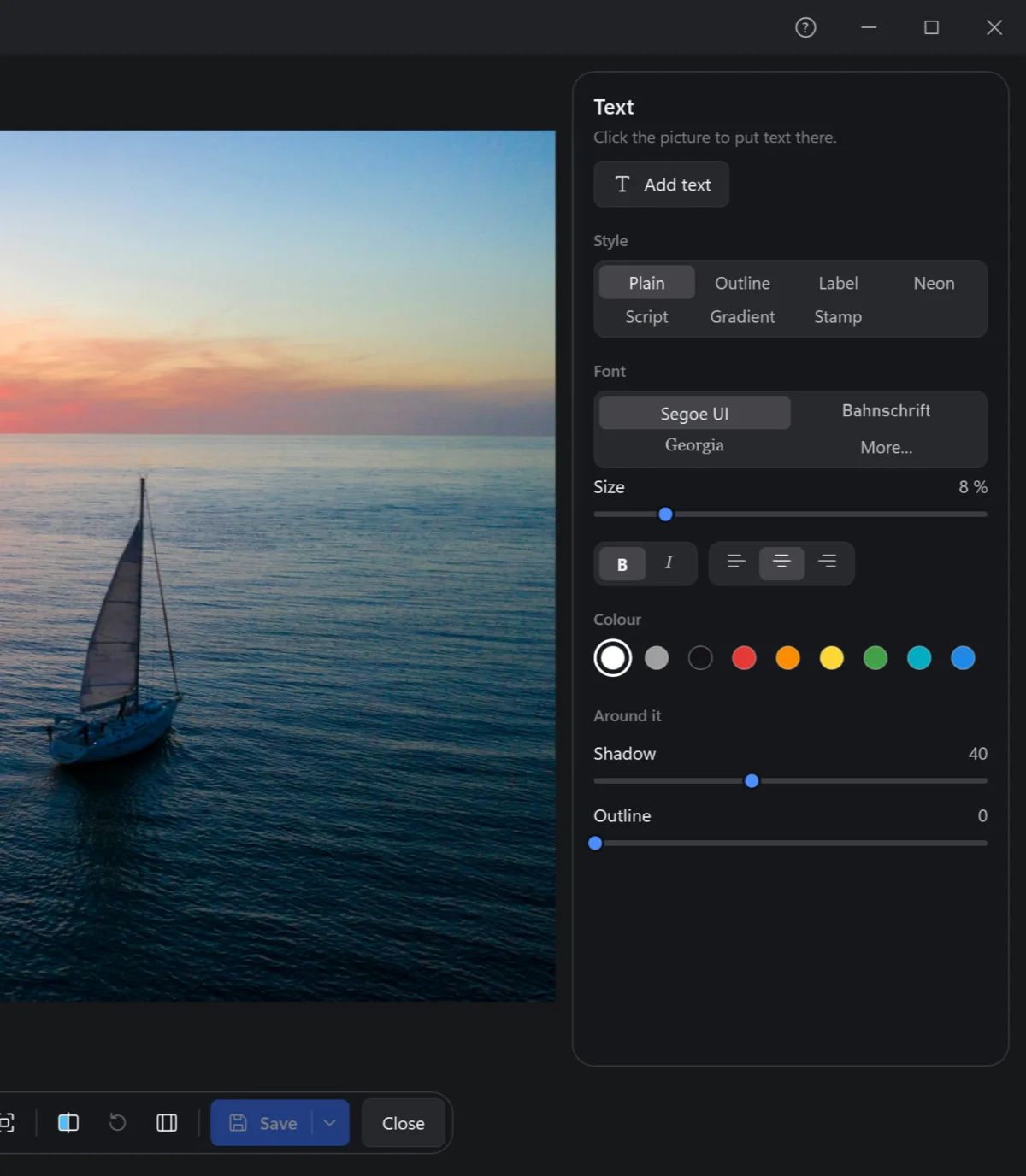
T, then click the photo where the text goes, and type. A style sets its whole look in one click:
Plain, Outline, Label (on a plate), Neon, Script, Gradient, Stamp.
Then any of it by hand: the font (More… for every font of this PC), size, bold, italic, the lines to the left, middle or right, its colour, and around it — a shadow or an outline.
Stickers
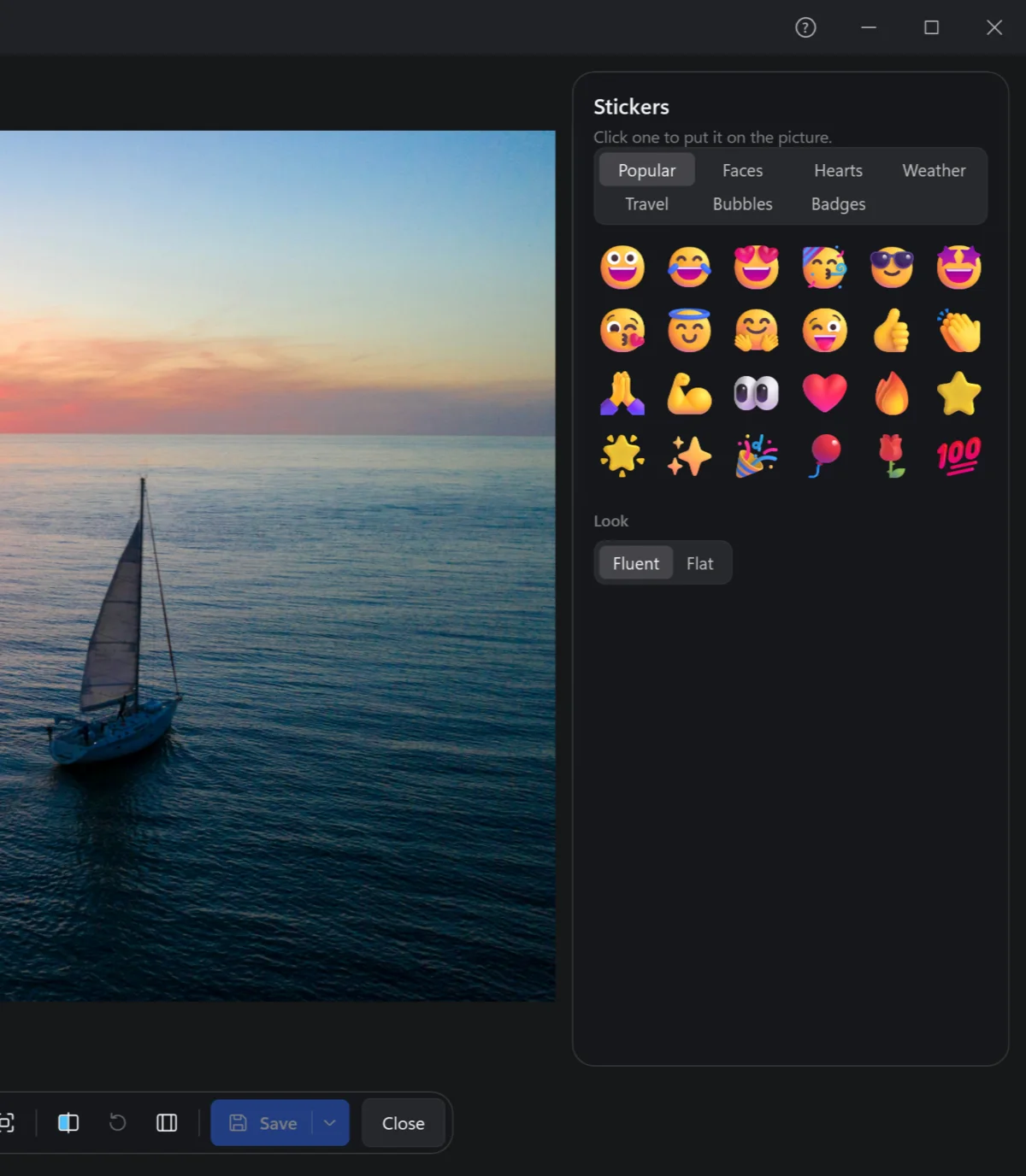
S, then click one to put it on the photo. They are Windows' own colour emoji, in sets: Popular, Faces, Hearts, Weather, Travel, Bubbles, Badges. Look: Fluent, as Windows 11 draws emoji, or Flat.
Being drawings, they stay sharp however large you make them.