Settings
Each setting says in a line what it does and why. Here they all are, page by page, with how each one comes.
In the app: ? in Settings, or F1, opens the part about the tab that is open; Learn more after an option, its part of the docs.
Open Settings with ⋯ → Tools → Options… in the viewer, or ☰ → Options… (Ctrl+,) in the manager.
General
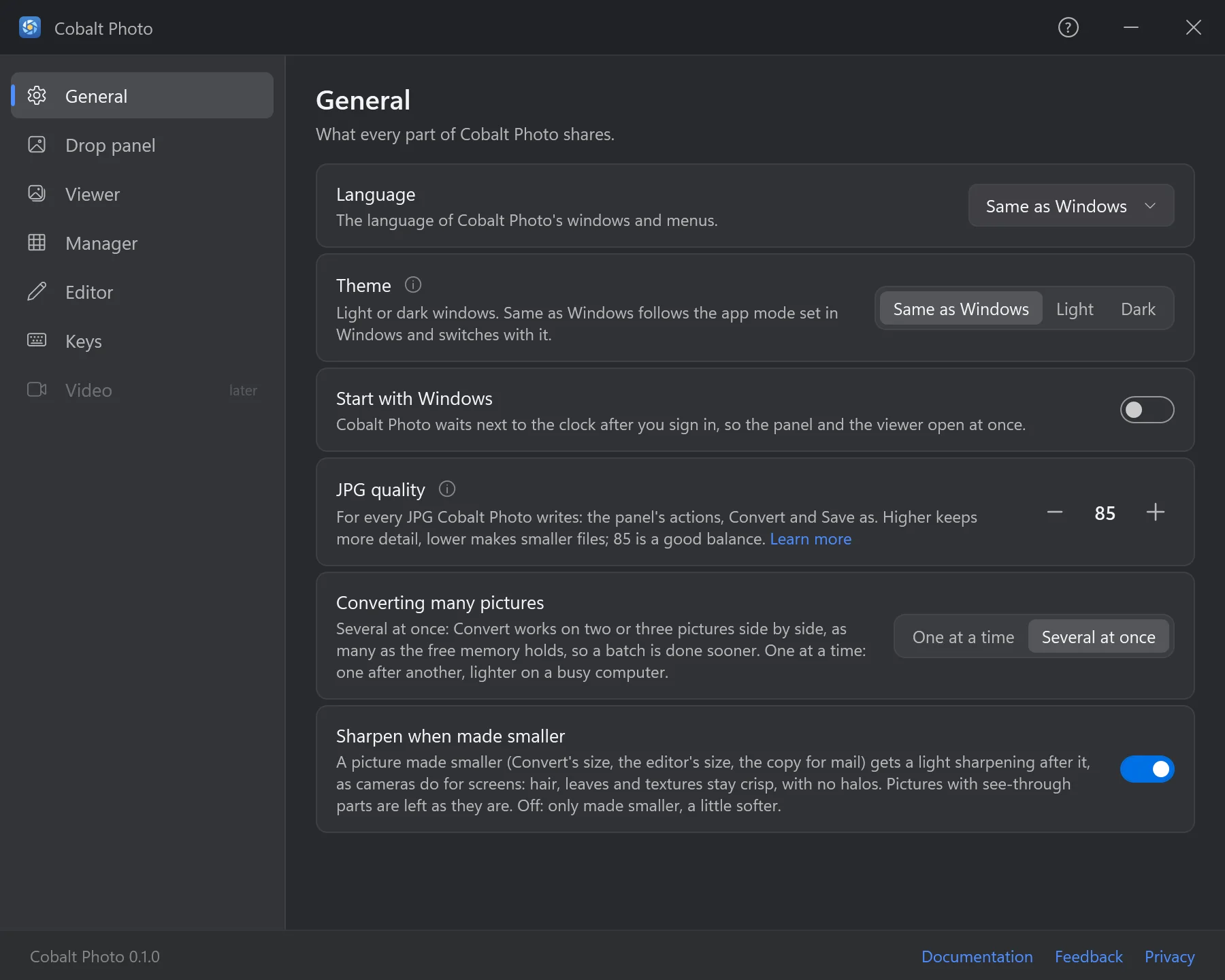
- The pages. General, Drop panel, Viewer, Manager, Editor and Keys.
- Language. The language of Cobalt Photo's windows and menus: the same as Windows, or another.
- Theme. Light or dark windows; Same as Windows follows the app mode set in Windows and switches with it.
- Start with Windows. Cobalt Photo is ready after you sign in, so the drop panel and the viewer open at once. If Task Manager's Startup apps turned it off, it says so: turn it on there.
- Converting many pictures. Several at once — two or three side by side, as many as free memory holds — or one at a time, lighter on a busy PC.
- Version, and the links to these docs, to feedback and to the privacy page.
| Setting | What it does | As it comes |
|---|---|---|
| Language | The language of the windows and menus. | Same as Windows |
| Theme | Light or dark windows. | Same as Windows |
| Start with Windows | Ready after you sign in. | — |
| JPG quality | For every JPG Cobalt Photo writes: the panel's actions, Convert, Save as. Higher keeps more detail, lower makes smaller files. | 85 |
| Converting many pictures | Several at once, or one at a time. | Several at once |
| Sharpen when made smaller | A picture made smaller — by Convert, the editor, the copy for mail — gets a light sharpening after it, as cameras do for screens: hair, leaves and textures stay crisp, with no halos. Pictures with see-through parts are left as they are. | On |
Drop panel, Viewer, Manager
Their settings are told with what they change:
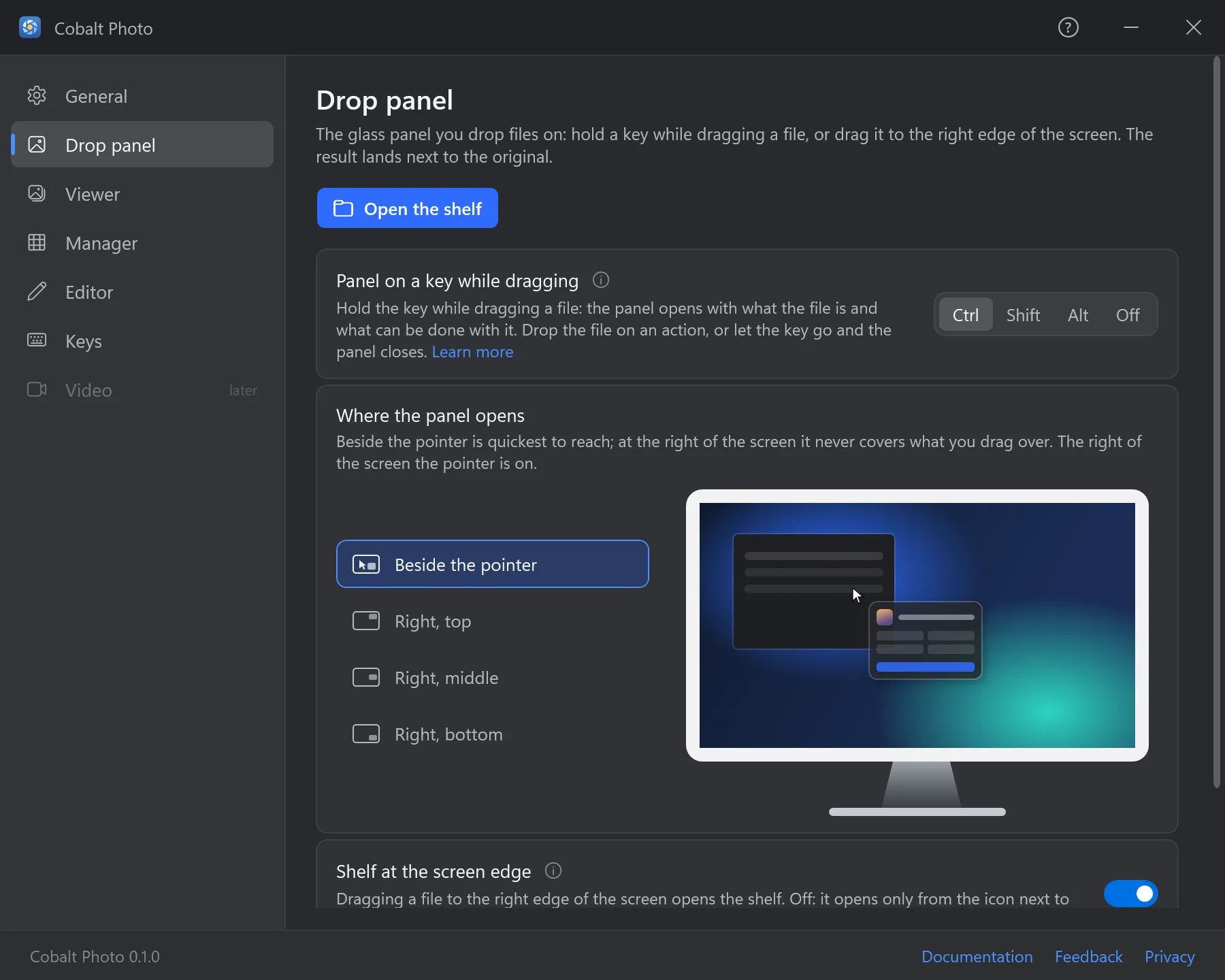
Drop panelThe key, the shelf at the edge, where it opens, the size for mail — settings.
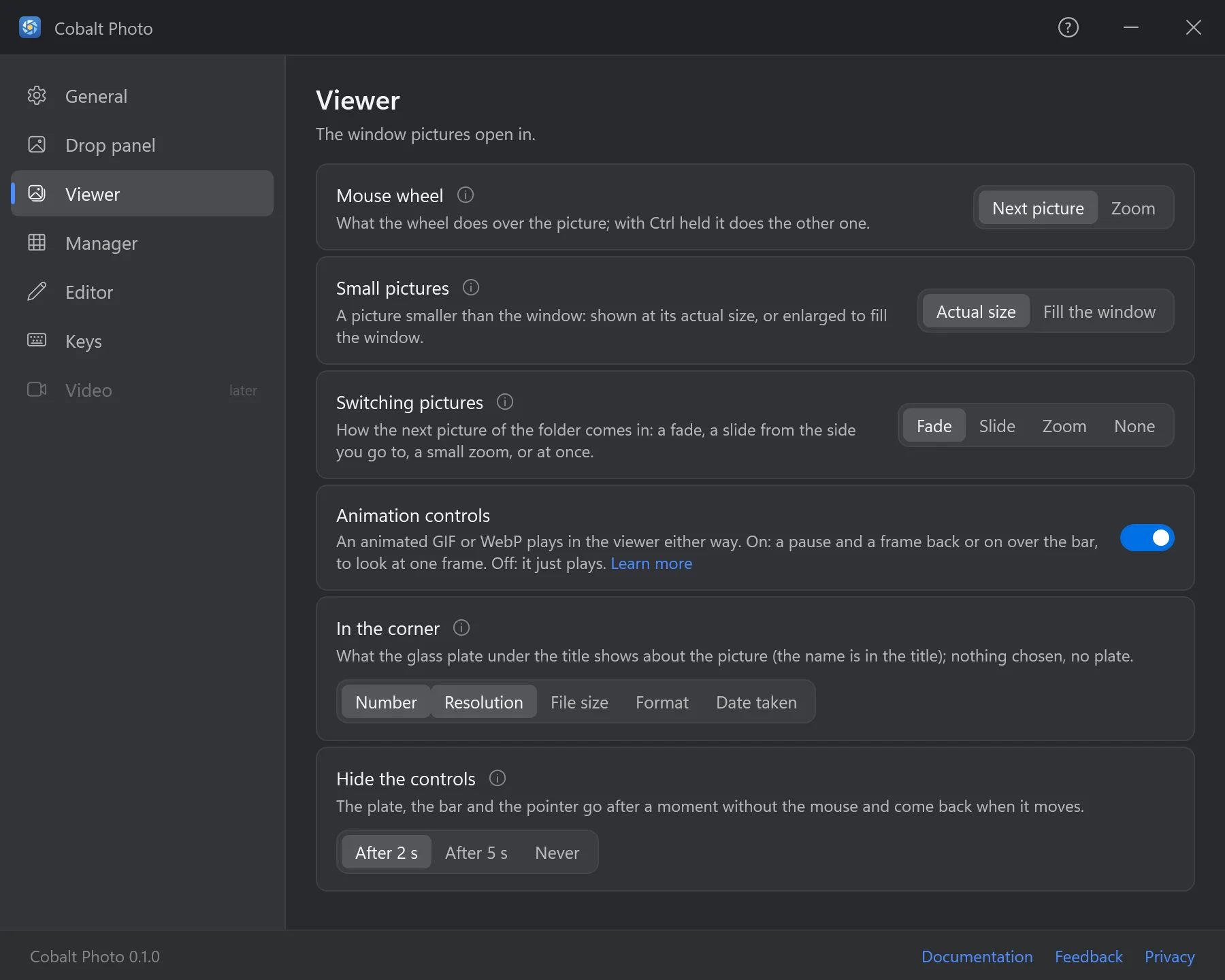
ViewerDouble click, the wheel, small pictures, switching, the plate, hiding the controls — settings.
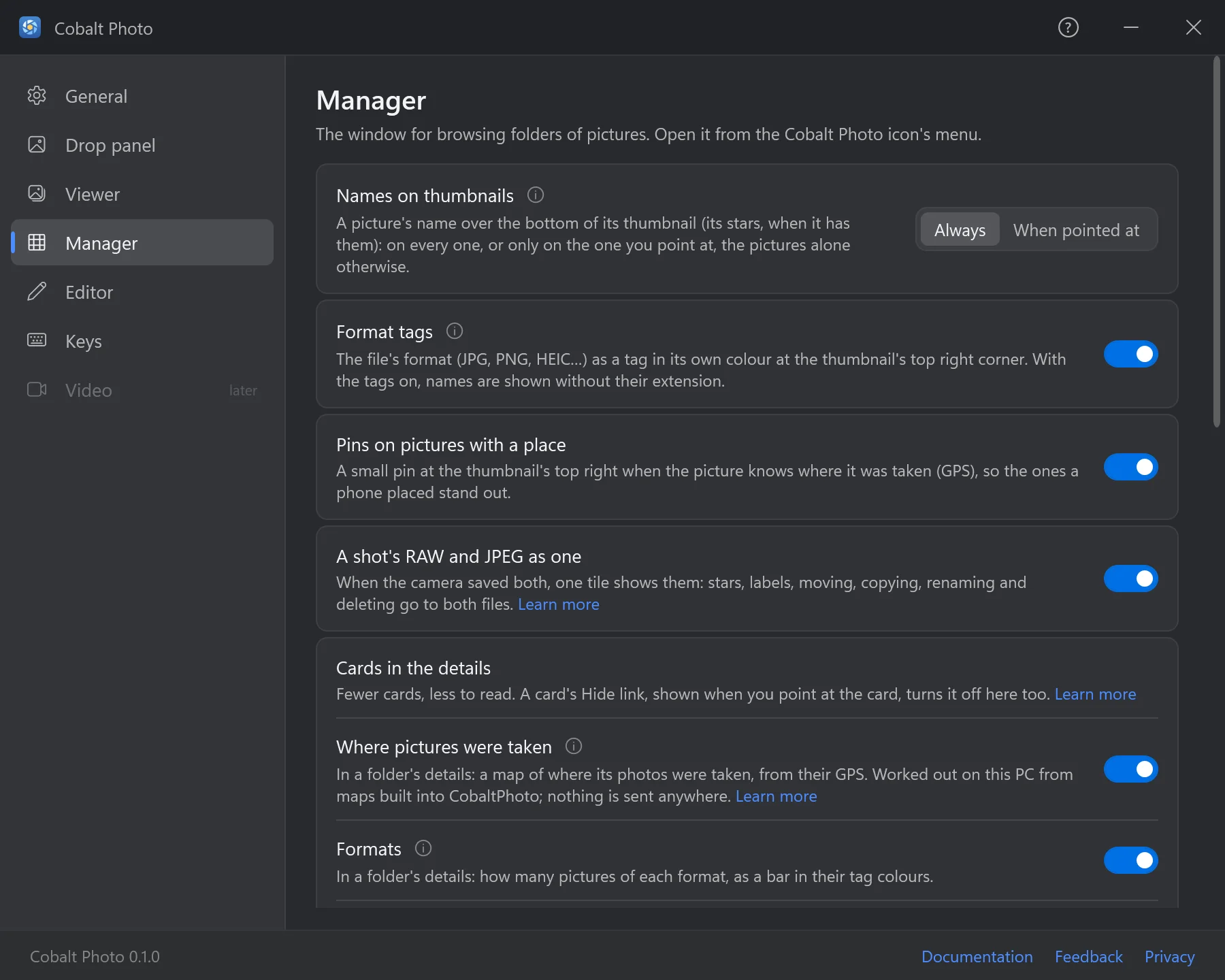
ManagerThe thumbnails' names, tags and pins, the cards of the details, the map, the cache — settings.
Editor
| Setting | What it does | As it comes |
|---|---|---|
| Saving an edited picture | Ask each time; always Replace the original (kept as a backup for a week, Undo puts it back); or always save an edited copy Beside it. A camera's RAW file is never replaced: a JPEG copy goes beside it. | Ask |
| Develop RAW files | A RAW file opens in the editor developed from the sensor's data — the whole frame, more in bright skies and dark corners, white balance on the real light — and the viewer, zoomed in past a camera's smaller picture, shows the whole shot. A second or more each time. Off: the picture the camera put in the file. | On |
| 16-bit TIFF and PNG | A RAW file or a 16-bit picture saved as TIFF or PNG keeps all its 16 bits a channel: smooth skies and room for more work or for print, in a file two to four times as big. Text, drawings, stickers, a watermark or a frame make it 8 bits. Off: always 8 bits. | On |
Keys
The last page lists every key Cobalt Photo answers to, by where it works — the same list as All keys.