Slideshow
A trip's photos on the TV, with the place and the date in the corner and music under them: chosen in four tabs, seen in the preview as it will look, started with one click.
Start it with F5 — in the viewer from the picture shown, in the manager from the folder or the pictures chosen — or set it up first: ⋯ → View → Slideshow settings… in the viewer, ☰ → Slideshow… in the manager, or right-click a folder → Slideshow…. The settings window opens free, so you can see all it does; the show itself is Pro.
On the right of every tab, the preview shows the show as it will look on the screen, with your settings, picture after picture.
Pictures
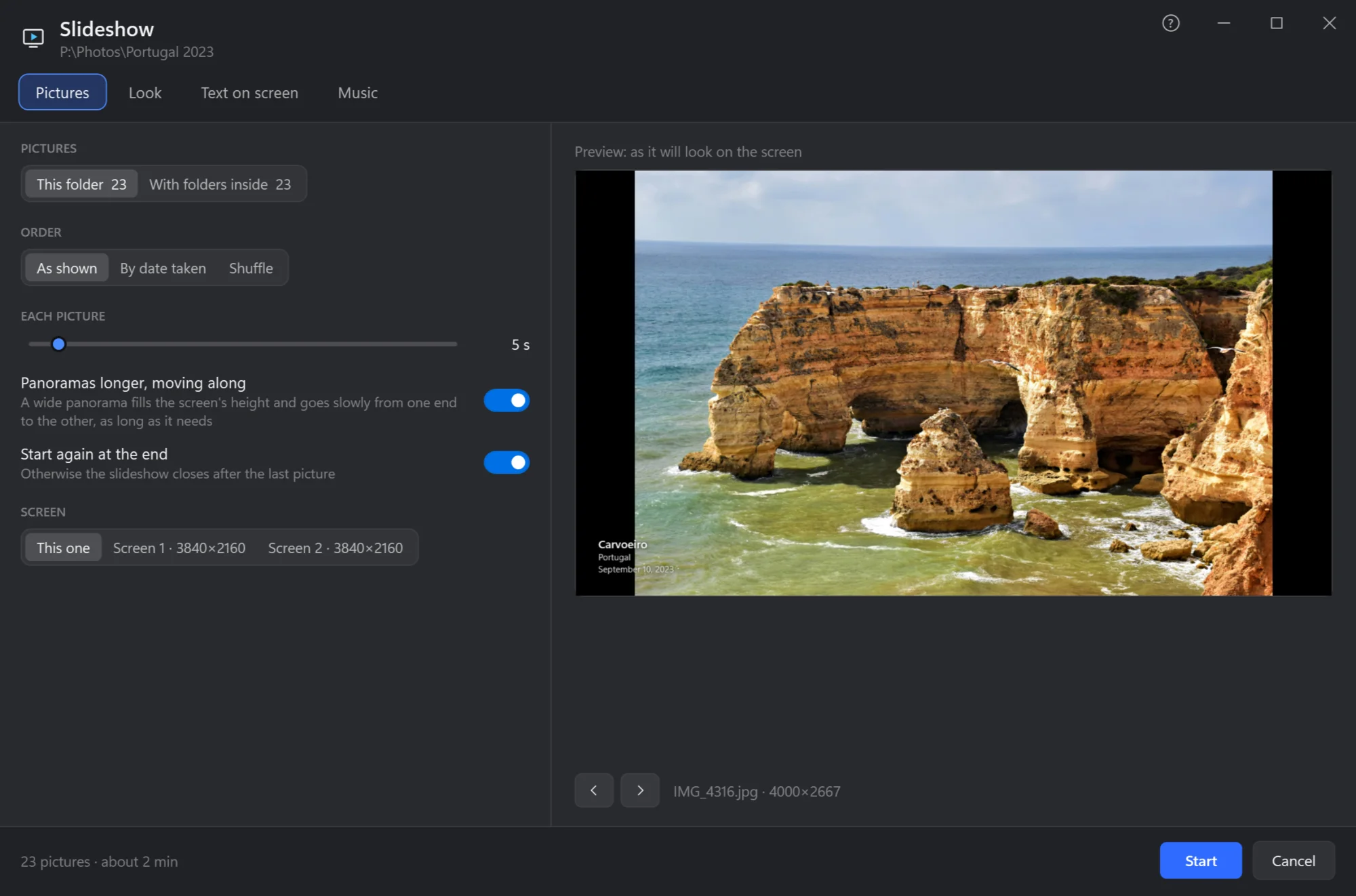
- The tabs. Pictures, Look, Text on screen, Music.
- Which. The ones chosen, this folder, the pictures shown (a search's results), or with the folders inside.
- Order. As shown, by date taken, or shuffled.
- Each picture, in seconds.
- Panoramas longer, moving along. A wide panorama fills the screen's height and glides from one end to the other, as long as it needs.
- Start again at the end — or close after the last picture.
- Screen. This one, or another — a TV or a projector — by its number.
- The preview, with its arrows to go through the pictures.
- How many, and how long the show will take.
- Start.
Look
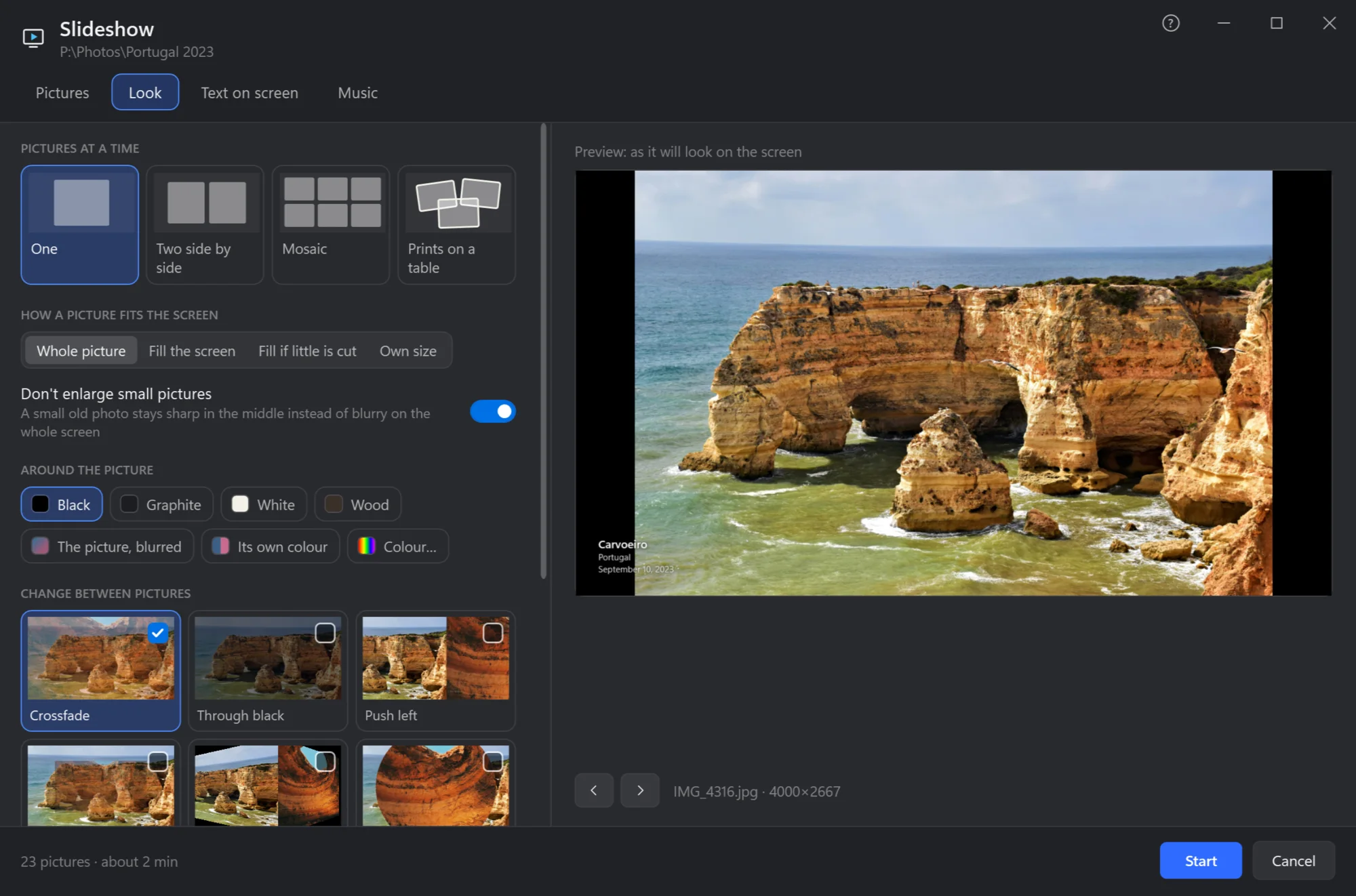
- Pictures at a time. One; two side by side; a mosaic; or prints on a table.
- How a picture fits. Whole; filling the screen; filling it only if little is cut; or at its own size.
- Don't enlarge small pictures. A small old photo stays sharp in the middle instead of blurry on the whole screen.
- Around the picture. Black, graphite, white, wood, a colour of yours, the picture itself blurred, or its own colour.
- Change between pictures. Tick the changes to use — nine to start with: crossfade, through black, push, zoom, cube, circle, blinds, card flip, film burn — and More… holds 172 more in 13 groups: 3D, light, stripes, film, zoom and the rest. They follow in turn or at random, quick, normal or slow; none ticked, the pictures change at once. Under them, Pan & zoom slowly: each picture drifts and grows a little while it is shown.
Text on screen
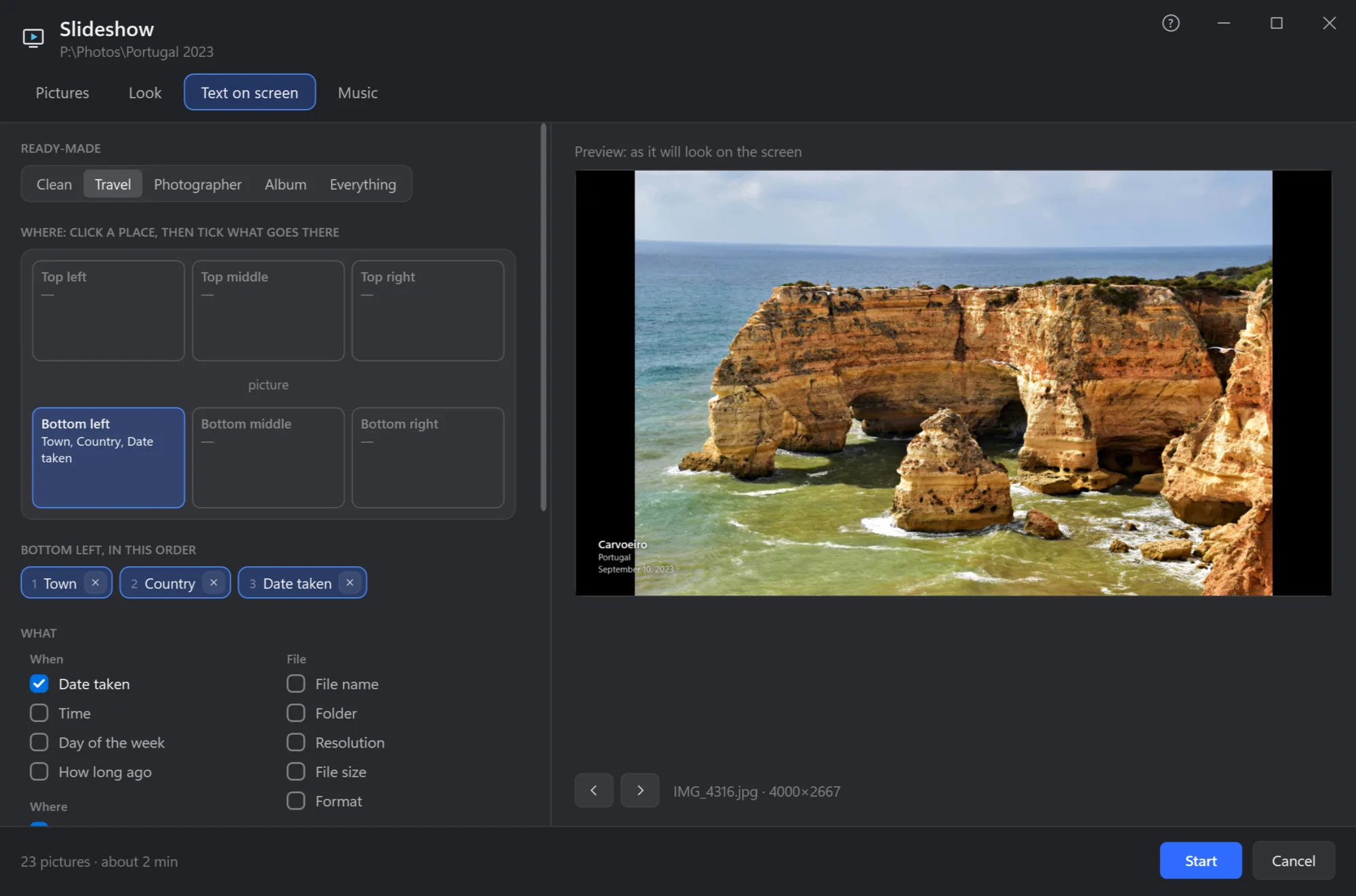
- Ready-made. Clean (nothing), Travel (town, country, date), Photographer (title; camera, shot and lens), Album (title, stars, date and town), Everything — then change any of it.
- Where. Six places round the picture: click one, then tick what goes there.
- In this order. What the chosen place shows, top to bottom; × takes one away.
- What. When — date, time, day of the week, how long ago; where — town, country, region, coordinates, altitude; the camera or phone, lens, shutter, aperture, ISO, focal length; the file's name, folder, size and format; yours — stars, label, title, description, tags, author; and during the show a counter, the clock and the music playing.
Further down: the text's size, on the picture with a shadow or on a glass plate, shown always, for the first seconds or only when paused, and the camera as an icon, a name or both. Places come from the photos' GPS, worked out on your PC.
Music
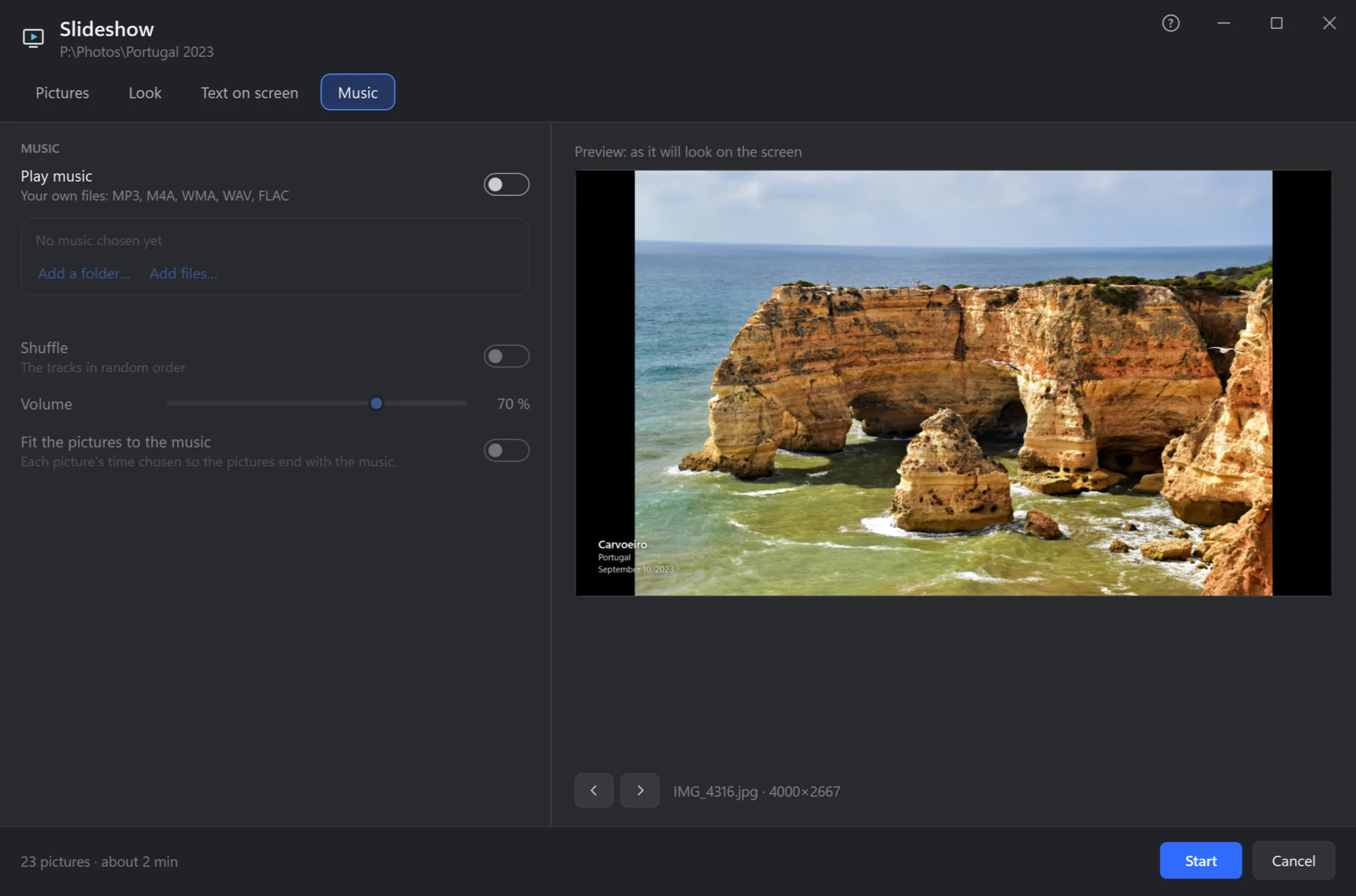
- Play music. Your own files: MP3, M4A, WMA, WAV, FLAC.
- The tracks. Add a folder… or Add files…; how many, and how long they play.
- Shuffle the tracks.
- Volume.
- Fit the pictures to the music. Each picture's time chosen so the pictures end with the music.
During the show
| Keys | What they do |
|---|---|
| Space | Pause and go on |
| ← → PgUp PgDn | Previous, next picture |
| Home End | First, last picture |
| ↑ ↓ | A second longer, shorter each |
| T | Text on the picture off and on |
| M | Music off and on |
| Esc | End the slideshow |