Details of a picture and a folder
The column on the right tells you about what you have chosen — one photo, or, with nothing chosen, the whole folder — in cards you can keep or hide.
Ctrl+I or the details button at the top right shows and hides the column. Point at a card and its Hide link turns it off; Settings → Manager → Cards in the details brings it back.
A picture's details
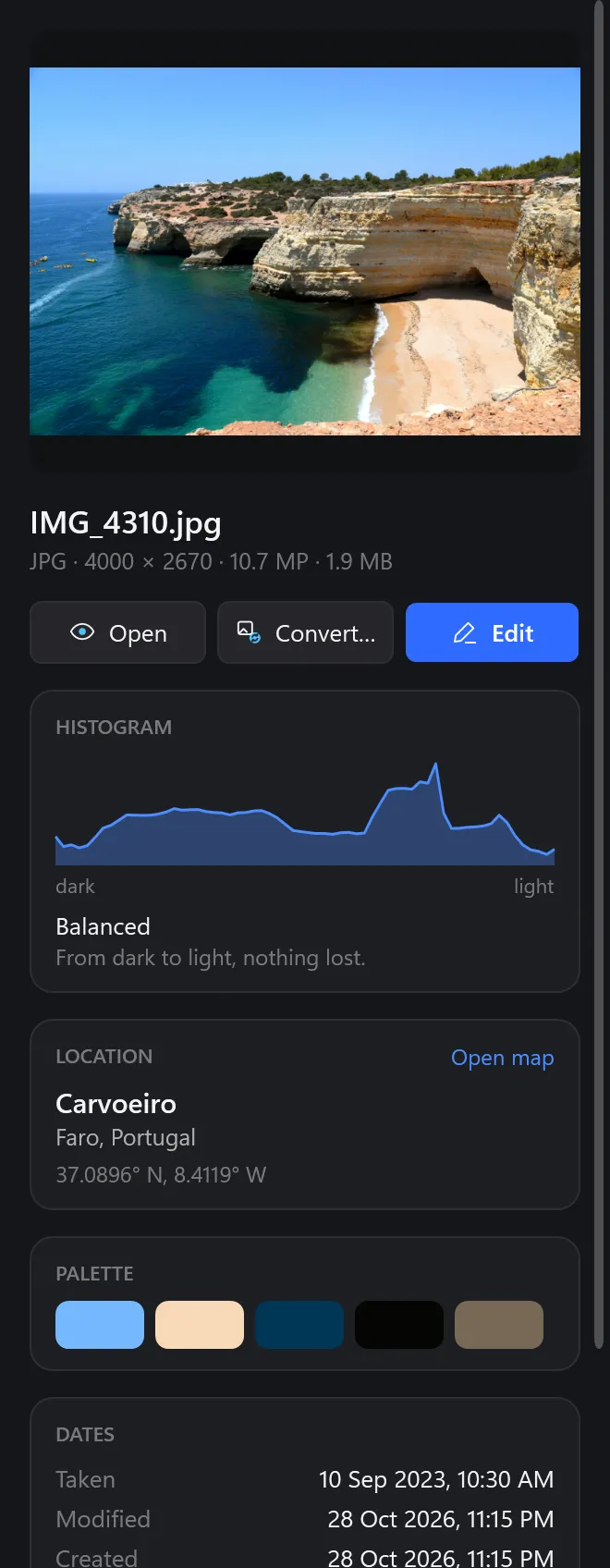
At the top, the picture, its name, format, size in pixels and megapixels and its file size, with Open, Convert… and Edit. Under them, the cards:
| Card | What it shows |
|---|---|
| Histogram | How the photo's brightness spreads from dark to light — and what that means, in words: Balanced, Dark picture, Too bright in places: 3% of it is pure white… More. |
| Location | Where it was taken: the town, the region and country, the coordinates. Open map shows the place in your browser. |
| Palette | Its main colours. |
| Dates | When it was taken (if the file says), last changed and created. |
| Shot | Shutter speed, aperture, ISO and focal length, and the camera or phone. |
Some files get a card of their own: an icon its Sizes, each to save as PNG; a Photoshop file its mode, layers and whether its flattened picture is in it; an SVG its size, shapes and fonts; an animation its frames, length and how often it plays.
The histogram in words
The curve runs from black on the left to white on the right; the higher it is, the more of the photo has that brightness. Under it, Cobalt Photo says what it sees:
| It says | Meaning |
|---|---|
| Balanced | From dark to light, nothing lost. |
| Dark picture, Light picture | Mostly dark or light tones — a night shot, snow — but no detail lost in black or white. |
| Too dark in places | A share of it is pure black: no detail left there. |
| Too bright in places | A share of it is pure white: a burnt-out sky, a lamp. |
| Lost at both ends | Pure black and pure white both: more contrast than the camera could take. |
A folder's details
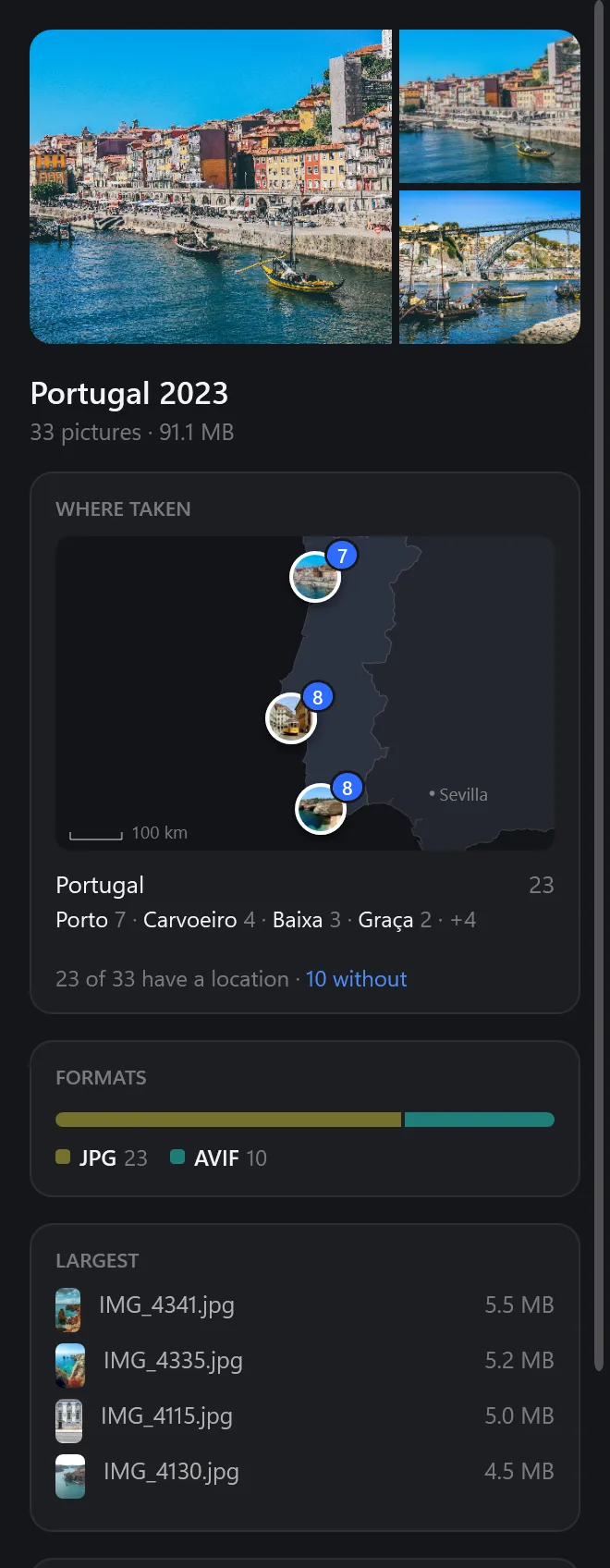
With nothing chosen, the column is about the folder: a few of its photos, its name, how many pictures and how much space.
| Card | What it shows |
|---|---|
| Where taken | A map with a circle for each place its photos were taken — one of them in it, and how many there are, as Photos on a phone shows them; the country and towns in words under it, and how many photos have a location at all. More. |
| Formats | How many pictures of each format, as a bar in their tag colours. |
| Largest files | Its four largest pictures, to see what takes the space; click one to choose it. |
Where taken
Photos from phones, and from cameras with location turned on, carry the place they were taken (GPS). The folder's map gathers them: each circle is a place, with one of its photos and how many were taken there; circles that would cover each other become one. The map is drawn on this PC and never closer than about 200 km across — it shows where, not the streets. Under the map, the places in words — Porto 7 · Carvoeiro 4 · Baixa 3… — and 23 of 33 have a location · 10 without.
- A folder whose photos are in the folders inside it says so; Map of the folders inside gathers all of them.
- Places are worked out on this PC, from maps built into Cobalt Photo: no photo and no place is sent anywhere. Only Open map, when you click it, sends that one photo's coordinates to the map you chose in Settings → Manager → Open places in.
- To find the photos taken in a place, search for it:
in:lisbon— Places.