Folders, drives and the cloud
The manager goes wherever your pictures are — any folder, any drive, OneDrive — and keeps the ones you use most a click away.
The sidebar
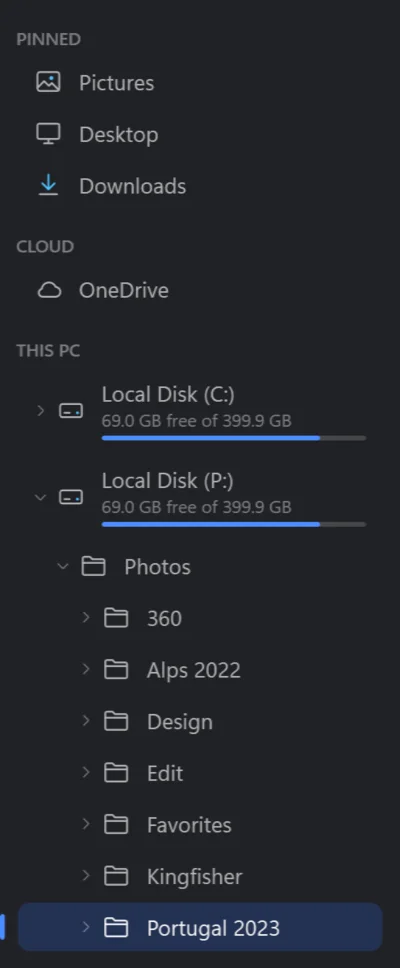
Pinned — Pictures, Desktop and Downloads to start with, and any folder you pin: right-click a folder and choose Pin to sidebar; Unpin from sidebar takes it away. Your saved searches are there too, under the pinned folders — Saved searches.
Cloud — OneDrive, Dropbox and the other clouds synced to this PC, each opening where its photos usually are: OneDrive's Pictures, Dropbox's Camera Uploads.
This PC — every drive, with how much of it is free, and under each the folders on it: the arrow opens a folder's folders without leaving the one you look at.
Ctrl+B hides the sidebar for more room, and shows it again. Drag its right edge to make it wider.
The path, back and up
- The path at the top shows where you are: click any part of it to go there.
- To go somewhere by its address, click the empty space after the path, or press Ctrl+L, Alt+D or F4, and type or paste it.
- Back and Forward (Alt+←, Alt+→, or the mouse's side buttons) go through the folders you have been to; Up (Alt+↑, Backspace) to the folder above.
- ☰ → Open folder… (Ctrl+O) picks a folder in Windows' own window; Open in Explorer shows the folder you are in, in Explorer.
The folders under the name
A folder with folders inside shows them as chips under its name — two rows at most; +12 more at the end shows the rest. Click one to go in. The line under the name counts them too, after the pictures. If you would rather go by the sidebar and the path alone, turn off Settings → Manager → Folders under the name.
What a folder can do
Right-click a folder — in the sidebar, or a chip — for:
| Command | What it does |
|---|---|
| Open, Open in Explorer, Copy path | As they say. |
| Pin to sidebar | Keeps it under Pinned. |
| Find duplicates… | The same photos in this folder and the folders inside it, even resized copies. |
| Rename pictures… | Every picture in it by a template, such as the date taken and a number. |
| Sort into folders…, Import from here… | Its photos into folders by date. |
| Slideshow…, Cull pictures… | Of the pictures in it. |
| New folder…, Cut, Copy, Paste, Rename, Delete, Properties | As in Explorer. Windows' own folders (Pictures, Desktop, your profile…) and the drives cannot be cut, renamed or deleted here. |
Photos kept only in the cloud
OneDrive, Dropbox and the like can keep a photo only in the cloud ("online only") until you open it. The manager never downloads such a photo just to show it: its thumbnail is the one the cloud app gives Windows, and it has no details — no date taken, no location — until it is on this PC. The folder's map says how many it did not read: 5 in the cloud not read. Open the photo, or choose Always keep on this device for the folder in Explorer, and the rest follows.
Large folders
Thumbnails are kept on disk once made, so a folder opens at once the next time — up to the size set in Settings → Manager → Thumbnail cache (2 GB as it comes); past it the oldest go, and are made again when needed. The details of each photo — its date, camera and place — are read in the background while you look: a search by date or place in a folder of thousands of photos gets faster as they are read, and says how far it has got.