The manager window
The picture manager is where your photos live: every folder, drive and cloud folder, as large thumbnails, with what each picture is and where it was taken beside them.
Every part of it
Point at a number to see what is there, or go through the parts one by one.
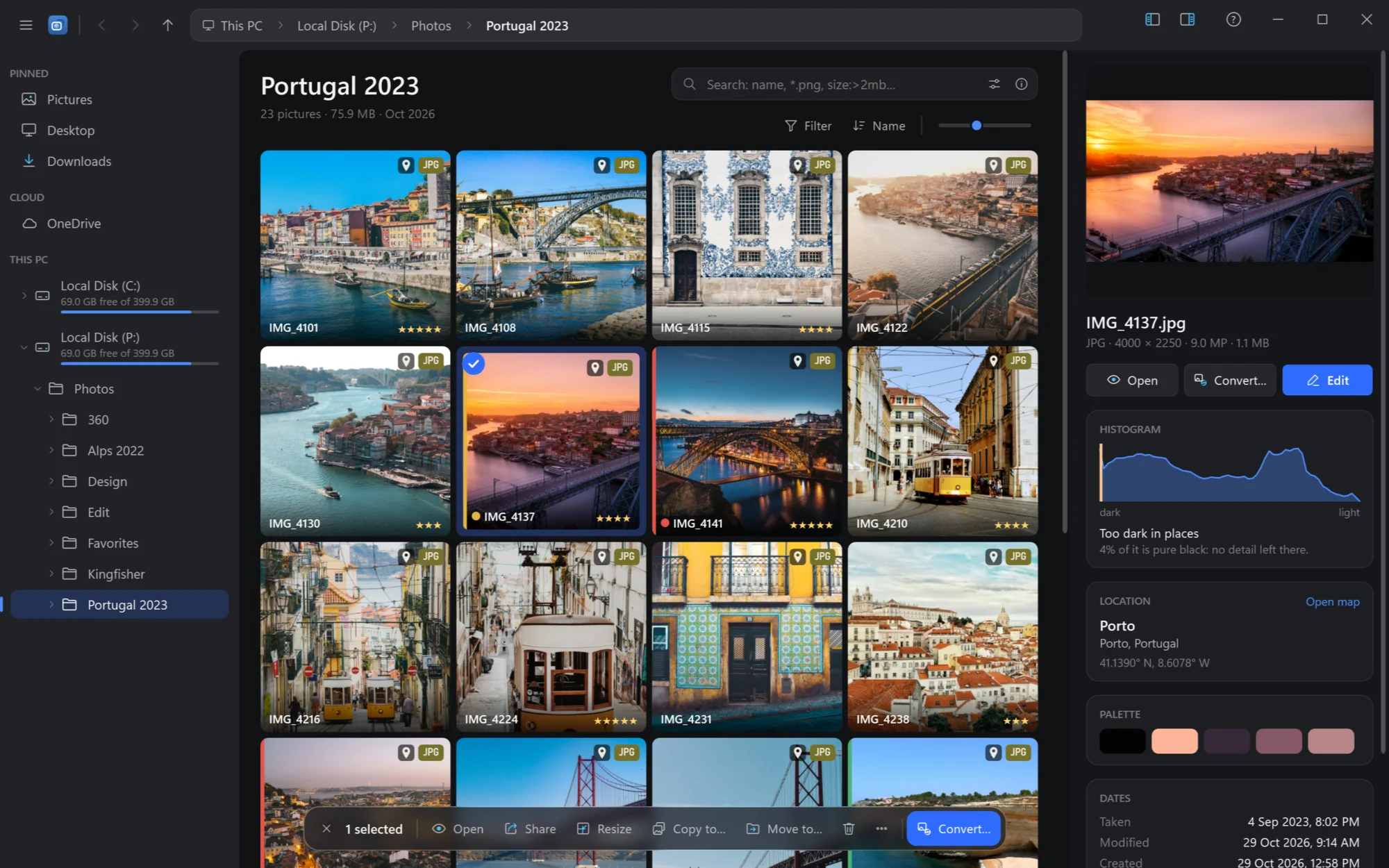
- ☰ Menu. Open folder…, Open in Explorer, the drop shelf, Import photos…, Convert…, Find duplicates…, Slideshow…, Cull pictures…, Options… and About.
- Back, forward, up. Through the folders you have been to, and up to the folder above. Alt+← Alt+→ Alt+↑; the mouse's side buttons too.
- The path. Click a part of it to go there. Click the empty space after it — or press Ctrl+L — to type or paste a path.
- Sidebar and details. Show or hide either side. Ctrl+B Ctrl+I
- The sidebar. Pinned folders, the cloud, the drives with their free space, and the folders on them — Folders, drives and the cloud.
- The folder. Its name; how many pictures, how much space they take, and when they were last changed.
- Search. Names, types, sizes, dates, places, cameras — typed, or clicked together with the sliders button beside it; ⓘ shows what can be typed. Ctrl+F — Search.
- Filter, sort, size. Add a condition; sort by name, date, size or type; make the thumbnails larger or smaller (Ctrl + wheel).
- The pictures. Large thumbnails with their name, stars, colour label, format and a pin when the photo knows where it was taken — see below. A double click opens one.
- The chosen ones. How many, and what to do with them: Open, Share, Resize, Copy to…, Move to…, Delete, ⋯ for the rest, and Convert.
- Details. The chosen picture: its size, its histogram, where it was taken, its colours, its dates, its camera. Nothing chosen: the folder's map, formats and largest files — Details.
What the thumbnails say
| On a thumbnail | What it means |
|---|---|
| Name, ★★★★ | The file's name (without its extension while the format tags are on) and its stars, at the bottom. |
| JPG, PNG, HEIC… | The format, as a tag in its own colour at the top right. |
| A pin | The photo knows where it was taken (GPS), so the ones a phone placed stand out. |
| A coloured dot and stripe | Its colour label: red, yellow, green, blue or purple — a dot before the name and a stripe along the left edge. |
| A tick at the top left | It is chosen. |
A camera's RAW file and the JPEG it saved with it are one thumbnail: stars, labels, moving, copying, renaming and deleting go to both files. Each of these marks can be turned off in Settings → Manager.
Choosing pictures
- Click a picture to choose it, Ctrl+click to add or take away one more, Shift+click to choose everything from the last one to here. With the keys: the arrows move, Shift with them chooses along, Ctrl+Space adds or takes away the one you are on.
- Ctrl+A chooses all, Esc none, Num * turns the choice around.
- Num + and Num − choose and unchoose by a mask such as
IMG_41*— Select by mask.
Whatever is chosen, the bar at the bottom offers what can be done with it, and the details on the right show it. A right click on a picture gives the whole list, grouped: Open, Edit, Convert, Resize, Share; Rotate and flip, Rating, Label, Metadata; Cut, Copy, Rename, Delete; and More.
Opening a picture
A double click, Space or Enter opens the picture in the viewer right inside the manager's window, and the arrows go through the pictures as they are shown — the search's results, in your order. ← at the top left or Esc brings the thumbnails back, at the picture you were looking at. Everything the viewer does is there: The viewer window.
Keys
| Keys | What they do |
|---|---|
| ← → ↑ ↓ Home End PgUp PgDn | Move between the pictures |
| Shift + arrows, Shift+click | Choose from the last one to here |
| Ctrl+click, Ctrl+Space | Choose or unchoose one more |
| Ctrl+A, Ctrl+Num + | Choose all |
| Esc, Ctrl+Num − | Choose none |
| Num + Num − | Choose, unchoose by a mask |
| Num * | Turn the choice around |
| Space Enter | Open in the viewer |
| Del | To the Recycle Bin |
| Ctrl+C Ctrl+X Ctrl+V | Copy, cut (pasted, they move), paste files |
| Ctrl+Shift+C | Copy their paths |
| F2 | Rename; several (or, with none chosen, all shown) by a template |
| 1 … 5, 0 | Stars on the chosen (0: none) |
| 6 7 8 9 | Colour label: red, yellow, green, blue (again: off) |
| X | Rejected, or not any more |
| E | Edit |
| Ctrl+M | Edit the metadata of the chosen |
| Ctrl+Z | Undo the last renaming, or put back the metadata just removed |
| Ctrl+Alt+← Ctrl+Alt+→ | Rotate left, right |
| Ctrl+E Ctrl+R | Convert, resize the chosen |
| F5 | Slideshow |
| Ctrl+Shift+D Ctrl+Shift+I | Find duplicates, import photos |
| Alt+Enter | The picture's Properties (Windows' window) |
| Ctrl+O | Open a folder |
| Alt+← Alt+→ | Back, forward (the mouse's side buttons too) |
| Alt+↑, Backspace | Up to the folder above |
| Ctrl+L, Alt+D, F4 | Type or paste a path |
| Ctrl+Shift+N | New folder in the folder shown |
| Ctrl+F, Ctrl+Shift+F | To the search line; Find pictures |
| Ctrl+B Ctrl+I | Show or hide the sidebar, the details |
| Ctrl + wheel | Thumbnail size |
| Ctrl+, | Settings |
Settings for the manager
In ☰ → Options… → Manager:
| Setting | What it does | As it comes |
|---|---|---|
| Names on thumbnails | A picture's name (and stars) over the bottom of its thumbnail: always, or only on the one you point at. | Always |
| Format tags | The format as a coloured tag at the top right; names are then shown without their extension. | On |
| Pins on pictures with a place | A pin by the tag when the photo knows where it was taken. | On |
| Small pictures | A picture smaller than its thumbnail, such as a 16-pixel icon: at its own size, sharp, or stretched to fill. | Actual size |
| Behind transparent pictures | Grey squares where a PNG or an icon is see-through, or the thumbnail's own colour. | Theme colour |
| Folders under the name | The folders inside the one shown, as chips under its name. | On |
| A shot's RAW and JPEG as one | One thumbnail for the two files a camera saved of one shot. | On |
| Histogram, Cards in the details | Which cards the details show — Details. | All on |
| Open places in | The map Open map shows a place in: Google Maps, Bing Maps, Apple Maps or OpenStreetMap. | Google Maps |
| Thumbnail cache | How much disk the kept thumbnails may take, so folders open at once; Clear empties it. | 2 GB |