Import and sort
Put the card in: the new photos go into your library, into a folder for each month, day or trip — each copy checked against the card, and the ones you imported last time left out.
In the manager: ☰ → Import photos… (Ctrl+Shift+I), or right-click a folder → Import from here… When a camera's card is in, the sidebar offers Import right under it, with how many photos are new.
The Import window
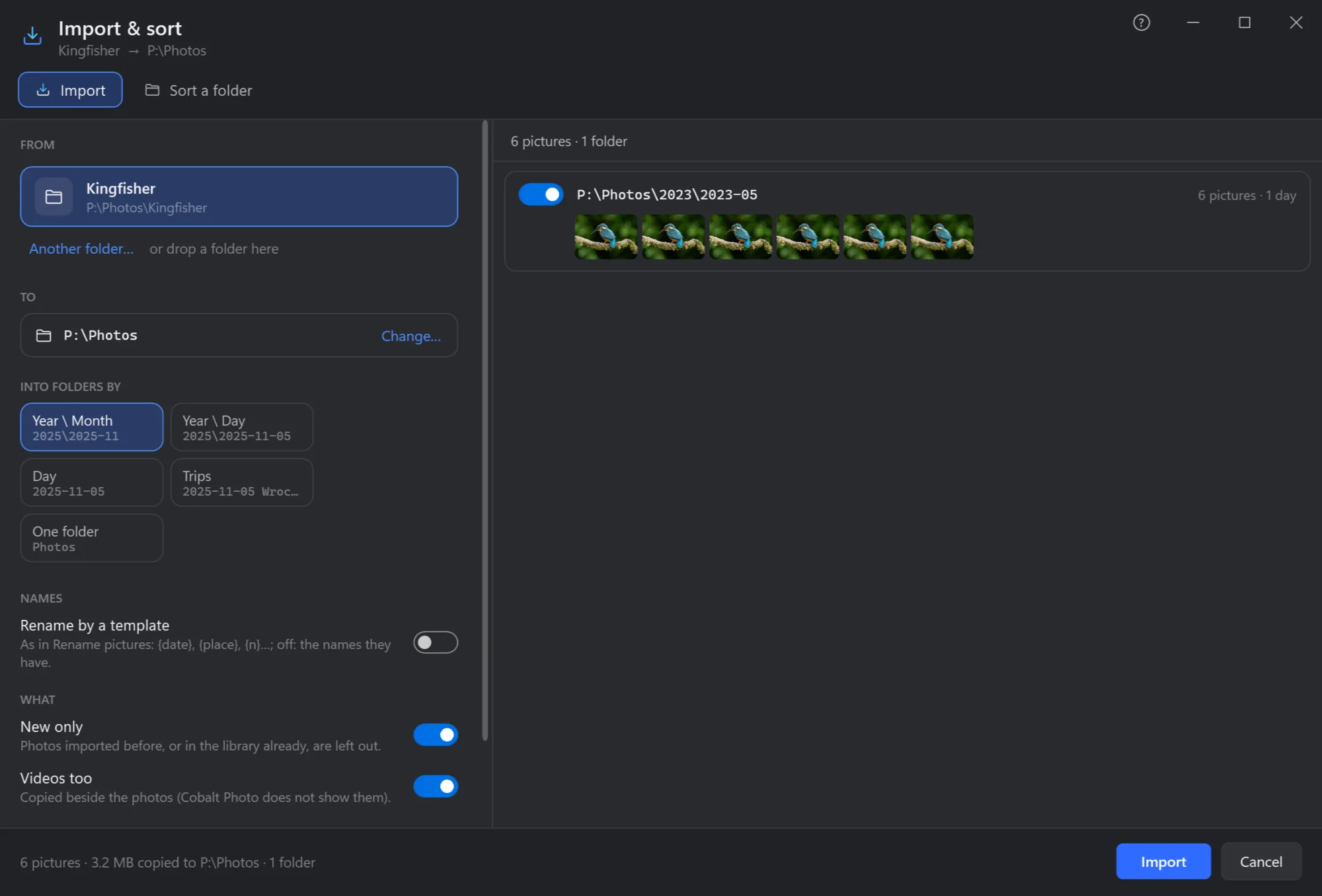
- Import copies photos into your library; Sort a folder moves a folder's photos into folders, the same way — see below.
- From. The card, or any folder: Another folder…, or drop one here.
- To. Your library: the folder everything goes under. Change… picks another.
- Into folders by. Year\Month (
2025\2025-11), Year\Day, Day, Trips — shots close together in time, the folder named by the first day and the town most were taken in (2025-11-05 Wrocław) — or one folder. - Rename by a template as they are copied: the same parts as Rename. Off: the names they have.
- New only. Photos imported before, or in the library already, are left out.
- Videos too, copied beside the photos (Cobalt Photo does not show them).
- What goes where, folder by folder, before anything is done: each folder with its photos, how many and over how many days. Switch one off to leave it out.
- Import. The footer says how many and how much is copied, into how many folders.
Each copy is checked against the card before it counts. From a card, After → Delete from the card removes only the files copied and checked, so the card is free for the next trip. The photos copied are remembered, so the next import of the same card takes only the new ones.
Sort a folder
A Downloads or Camera folder of a few thousand photos in one heap: Sort a folder, or right-click it → Sort into folders…, moves them into folders by year, month, day or trip, in the same window and the same way. When it is done, Undo in the note puts every photo back where it was.