Effects and areas
A look for the whole photo in one click, seen on the photo itself before you choose — or a change for just one part of it.
Effects
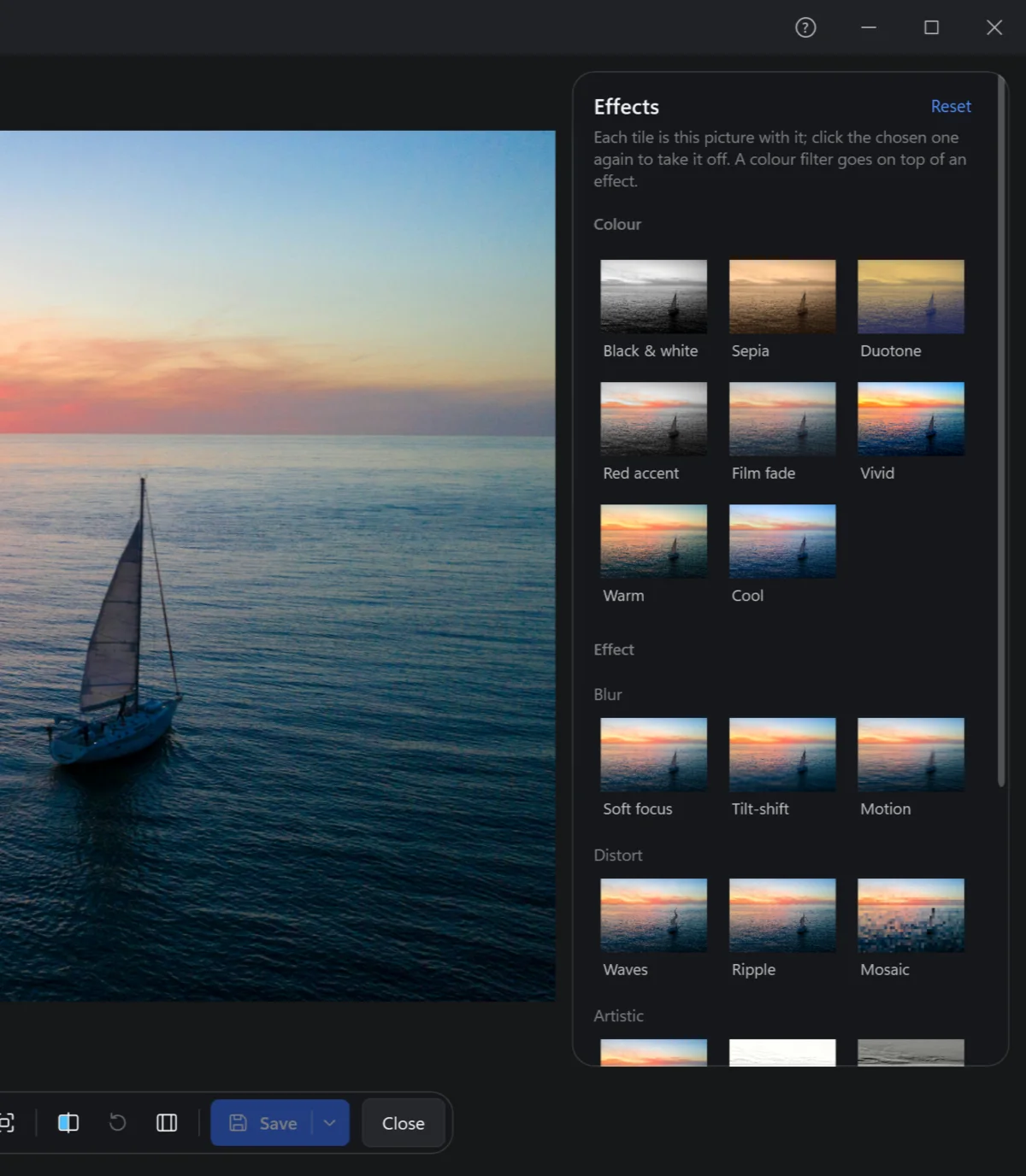
E. Each tile is your photo with it: click one to use it, the chosen one again to take it off, and set its strength. A colour filter goes on top of an effect, so the two combine.
| Choices | |
|---|---|
| Colour | Black & white, Sepia, Duotone, Red accent, Film fade, Vivid, Warm, Cool |
| Blur | Soft focus, Tilt-shift (a toy-like model world), Motion |
| Distort | Waves, Ripple, Mosaic |
| Artistic | Oil paint, Sketch, Emboss, Posterize, Edges, Pop art |
| Film | Old film, Light leak, Colour shift |
Areas: one part of the photo
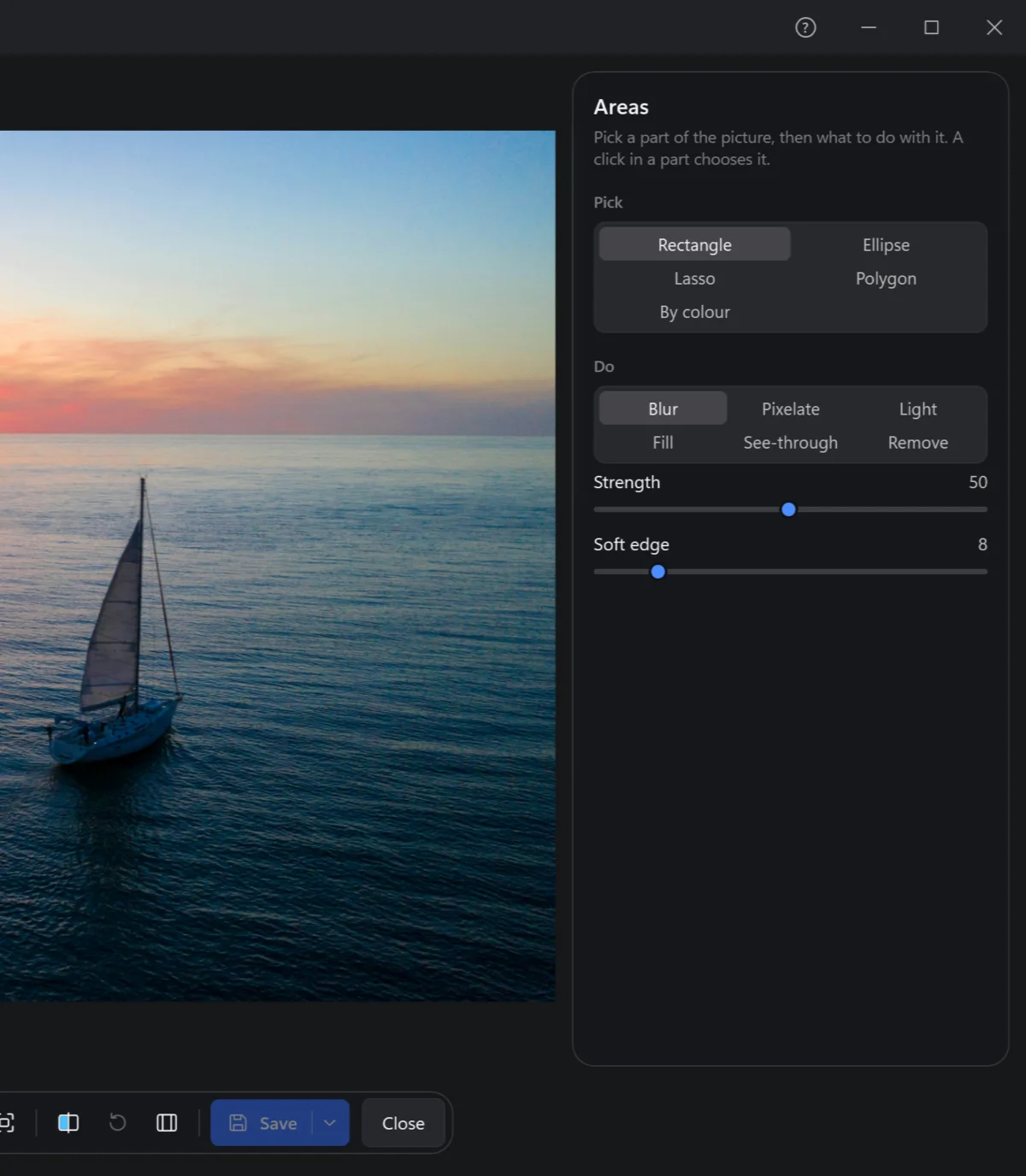
A. Pick a part of the photo, then what to do with it.
Pick — Rectangle, Ellipse and Lasso by dragging; Polygon by clicking its corners (a double click or Enter closes it, Esc drops it); By colour — click a colour on the photo and the like pixels round it are picked, as many as the tolerance lets, only those joined to the click if you like. Turned around makes it all but this part.
| Do | For |
|---|---|
| Blur, Pixelate | Faces, number plates, a screen with something private on it. |
| Light | Lighter or darker: a face in the shade, a sky too bright. |
| Fill | A colour over it. |
| See-through | The part made transparent: saved as PNG to stay so (a JPEG gets a PNG copy beside it). |
| Remove | Filled from around it, as if it was not there — as Retouch's Remove, for a larger part. |
A soft edge blends it in. A photo can have many areas; click in one to choose it, Del removes it.