Remove, heal and clone
A tourist in the frame, a wire across the sky, a spot from the sensor: paint over it, and it is gone — filled from what is around it.
In the app: ? in the editor, or F1, opens this page while Retouch is open.
Open Retouch on the left of the editor and choose what the brush does:
| Brush | What it does | Best for |
|---|---|---|
| Remove | Fills what you paint over from around it, as if it was not there. | Sky, water, grass, walls; less so a busy background. |
| Heal | Takes the detail from another place and fits it to the light and colour round the stroke. | Spots, dust, small blemishes, wires. |
| Clone | Copies another place exactly as it is. | Repeating a pattern, covering with something real. |
Removing a thing
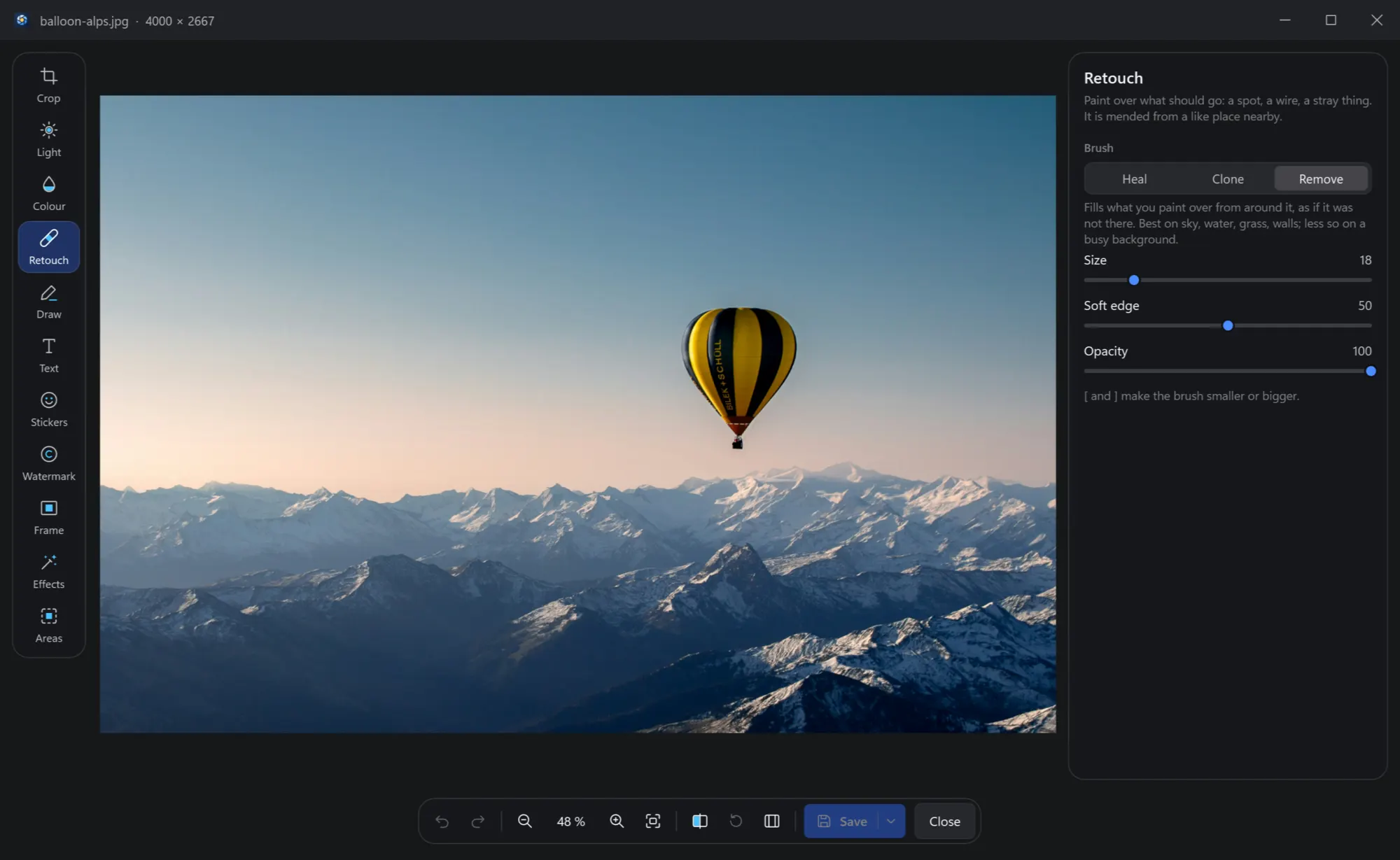
1 · Choose RemoveSize the brush with [ and ] a little larger than the thing.
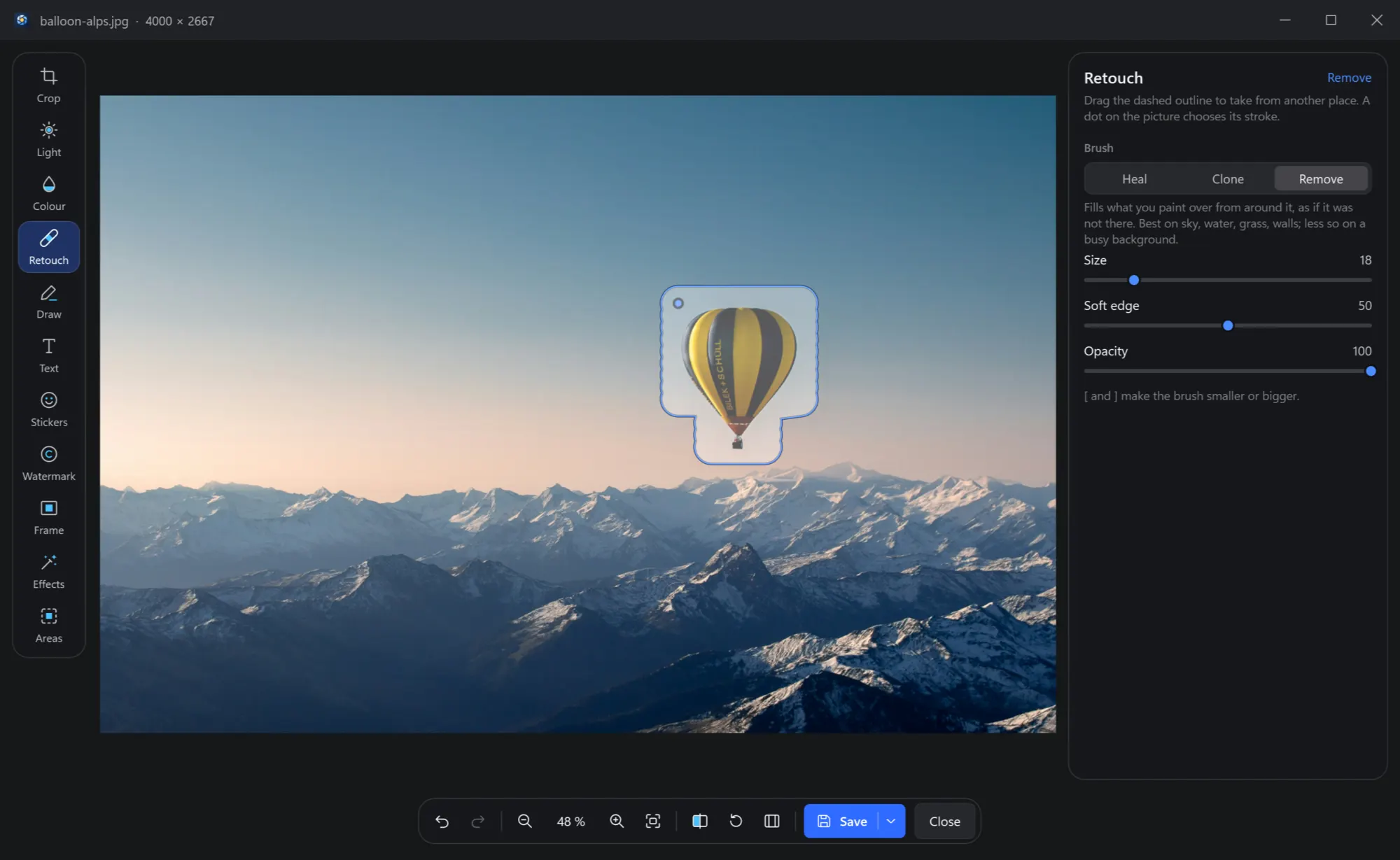
2 · Paint over itAll of it, its shadow too. The stroke shows where you painted.
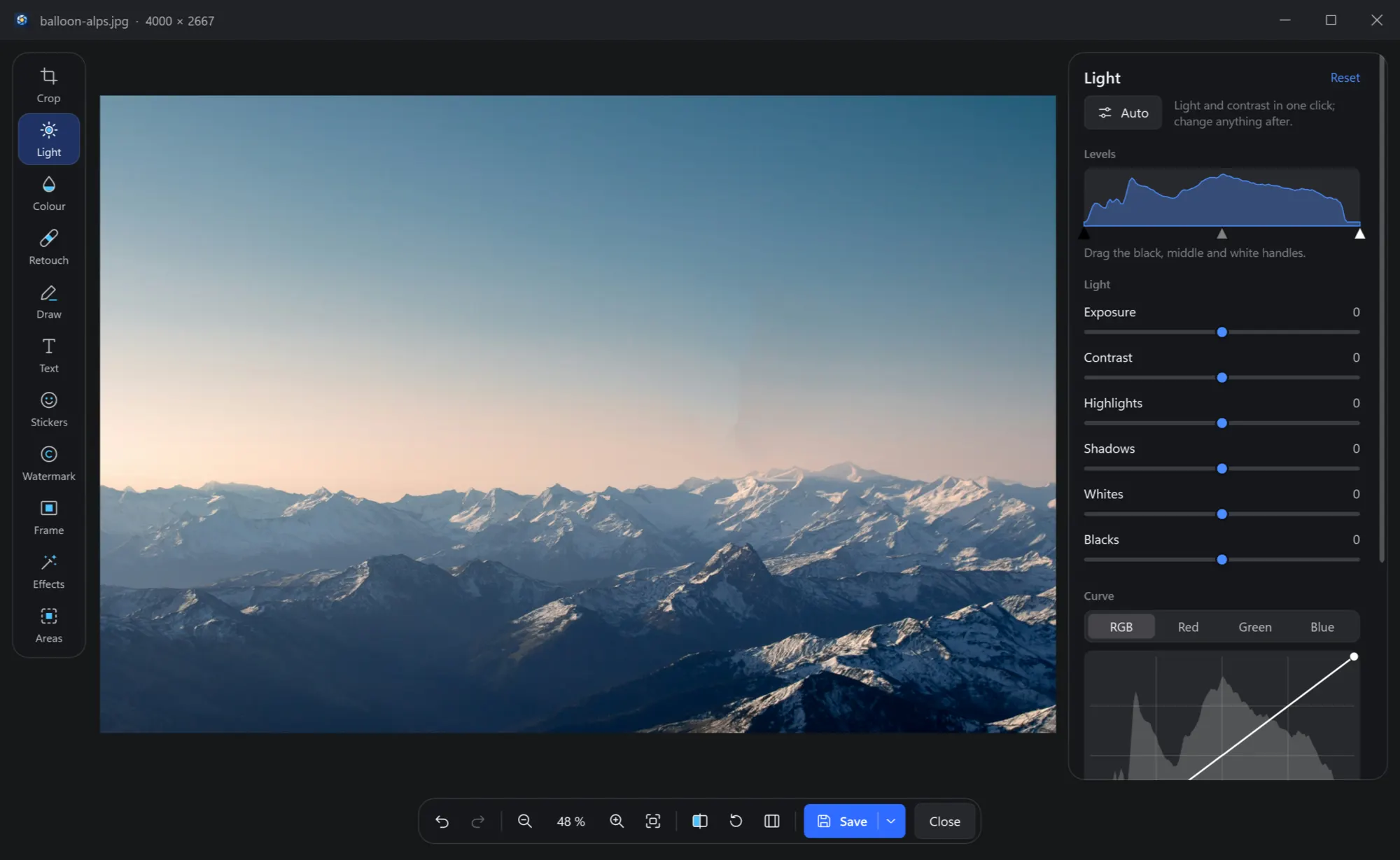
3 · It is goneFilled from around it in a moment. Not right? Ctrl+Z, and paint again a little wider.
Heal and clone
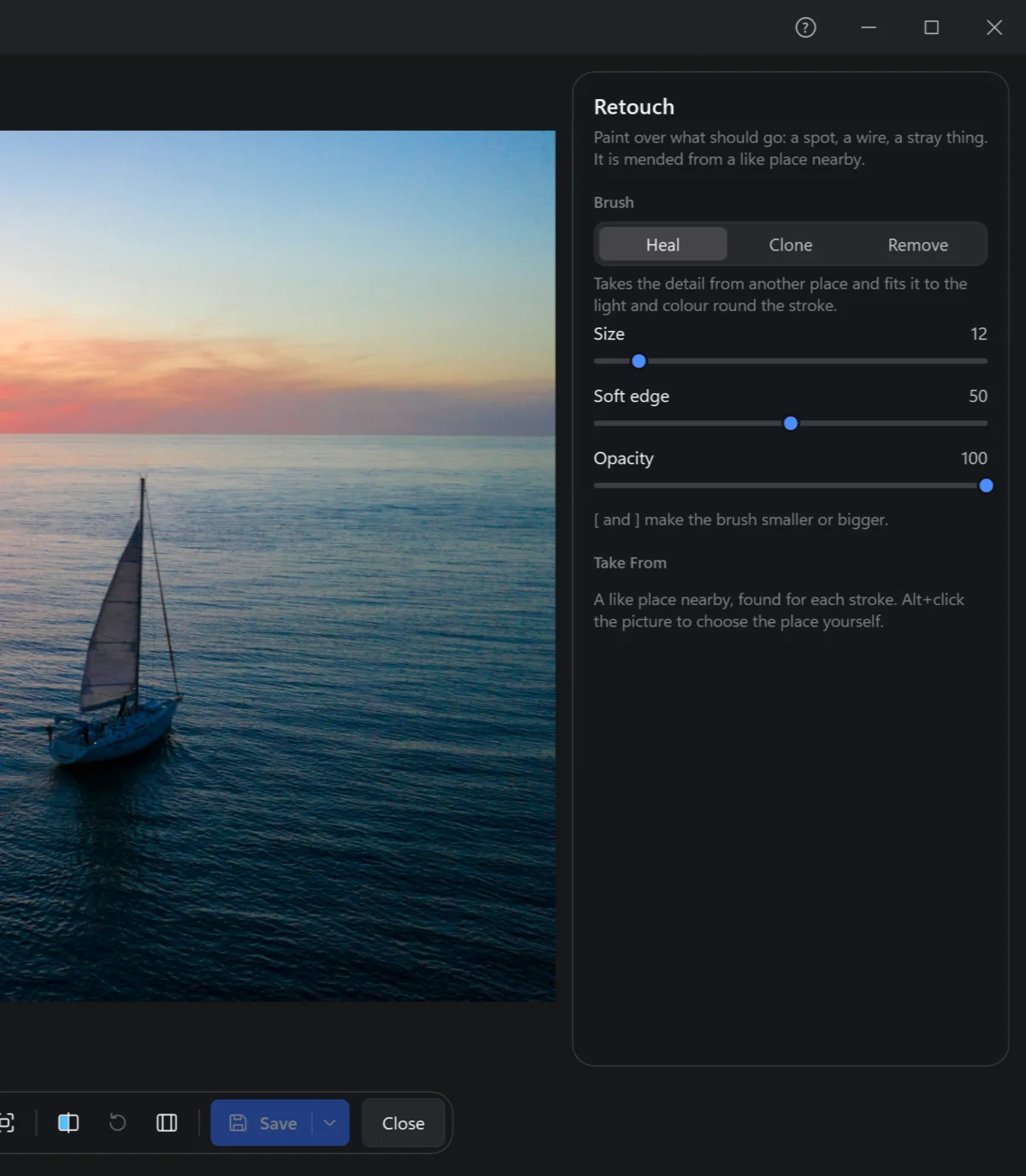
Heal and Clone take from another place of the photo. As it comes, a like place nearby is found for each stroke. To choose the place yourself, Alt+click it: the strokes after it keep the same distance to it, as a clone stamp does.
After a stroke, a dashed outline shows where it took from: drag it to take from another place. A dot on the photo marks each stroke — click one to choose it, Del removes it.
Size, Soft edge and Opacity shape the brush; [ and ] make it smaller or bigger while you work.