The viewer window
The picture fills the window. Everything you can do with it sits on glass over it — the facts at the top left, the commands at the bottom — and steps aside when you don't need it.
Every part of it
Point at a number to see what is there, or go through the parts one by one.
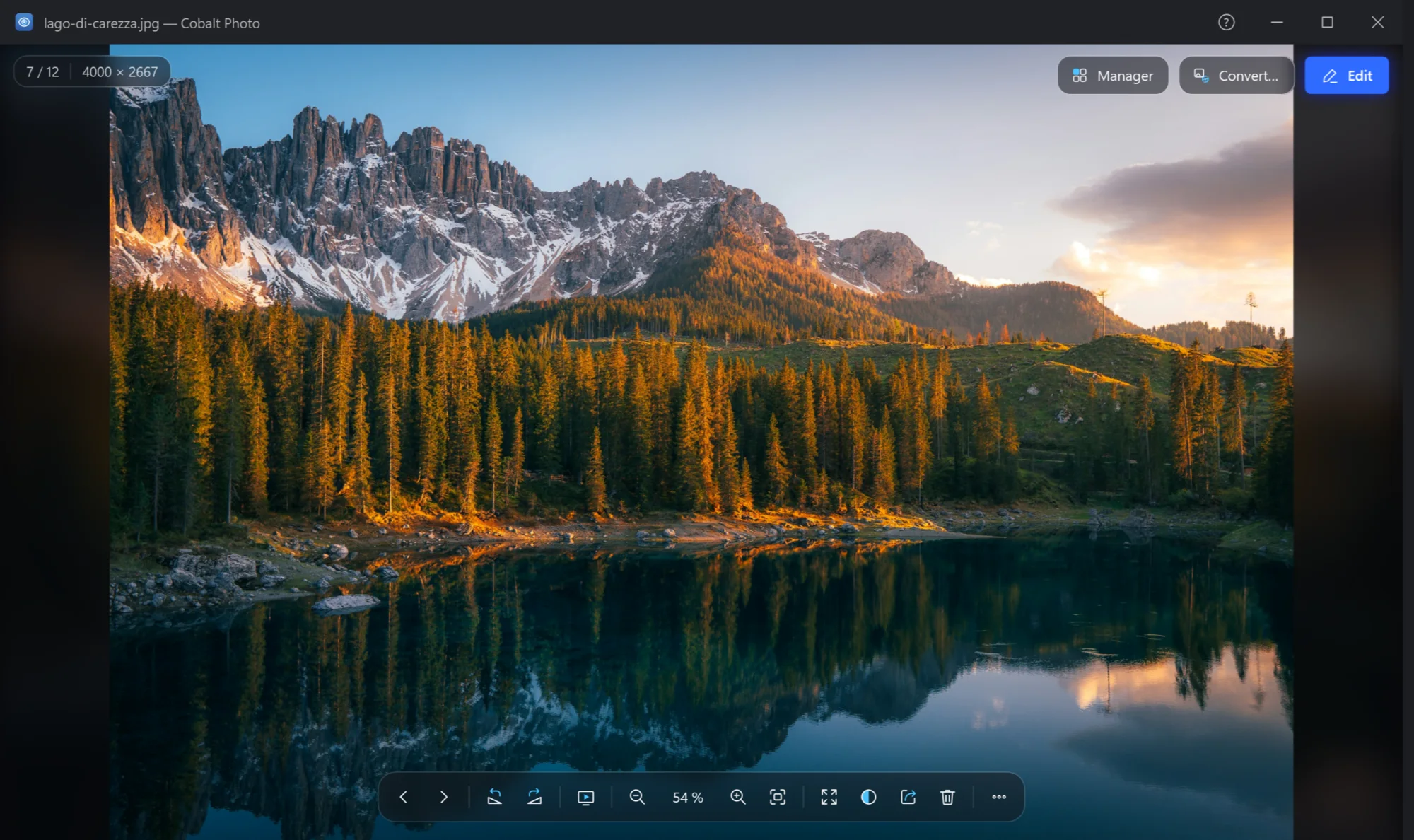
- The title bar. The picture's file name. Drag it to move the window, double-click it to make the window fill the screen; the ? before its buttons opens these docs.
- The plate. Which picture of the folder this is, and its size in pixels. It can also show the file size, the format and the date taken: see below.
- Manager. This picture in the manager, in its folder, selected. Ctrl+M Pro
- Convert… This picture to another format or size. Ctrl+E Pro
- Edit. The editor with this picture: crop, light, colour, retouch. E Pro
- The picture. The wheel goes to the next picture (or zooms, as you choose), dragging moves a picture larger than the window, a double click fills the screen. Drop a picture file here to open it.
- Previous and next. Through the pictures of the folder. ← → Space
- Rotate left and right. Saved to the file at once — a JPG without losing anything. Ctrl+Alt+← Ctrl+Alt+→
- Slideshow. From this picture, as you set it up last time — Slideshow. F5 Pro
- Zoom. Out, the zoom now (click it for 100 %, again to fit), in, and fit to the window. − + 1 0
- Full screen and background. The picture alone on the screen (F, F11; Esc comes back), and what is behind it: the theme's colour, black, white, squares to see transparency, or the picture's own colours, blurred.
- Share, Delete and ⋯ Windows' own Share window; Delete to the Recycle Bin and on to the next picture (Del); and ⋯, the menu with File, View, Tools and Help (Alt) — open, copy, save as, print, wallpaper, flip and the rest.
Opening pictures
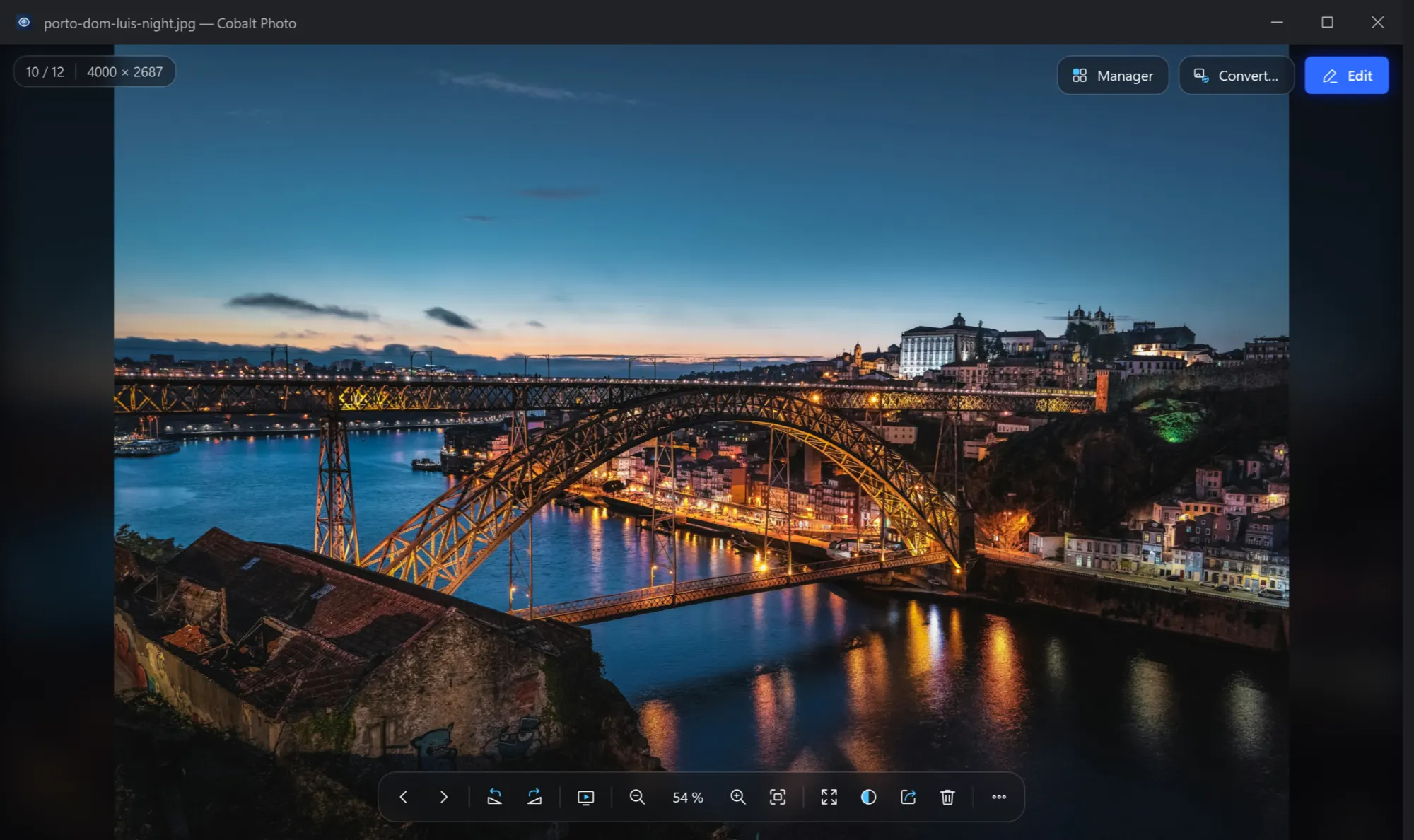
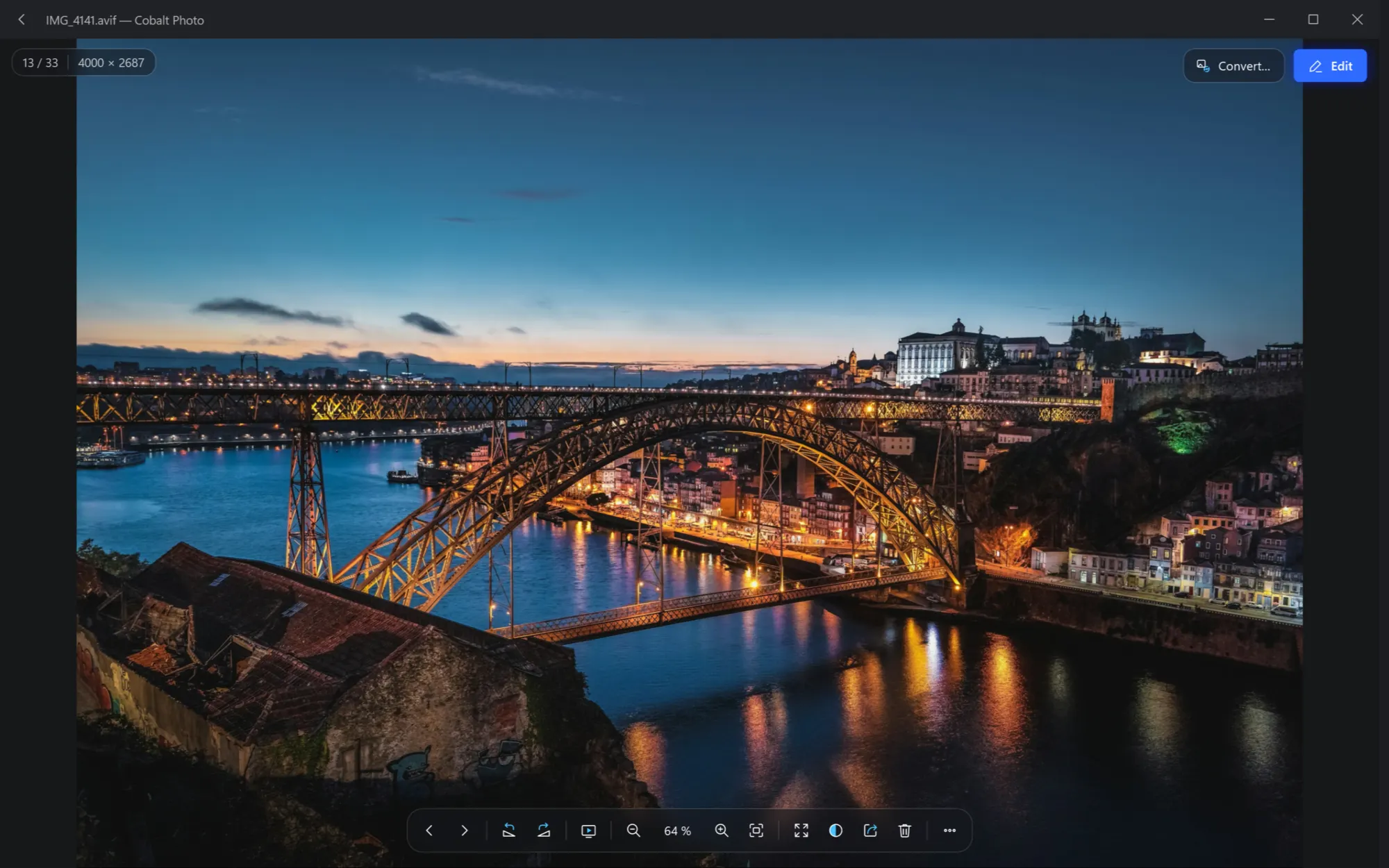
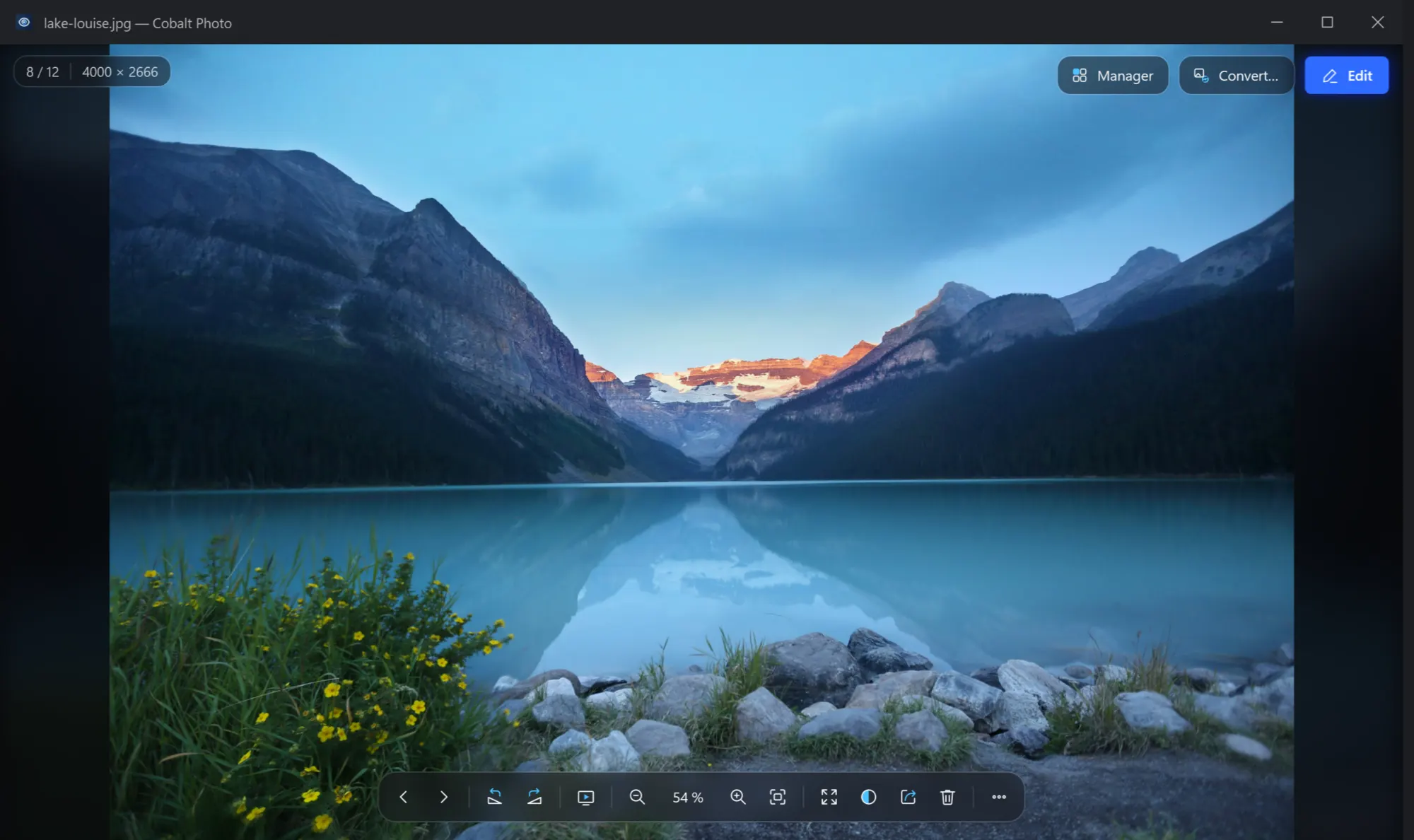
The viewer opens 43 picture formats: photos, RAW from cameras, HEIC, AVIF, JPEG XL, Photoshop and Krita files, icons, SVG and animations. A picture Windows cannot read says so in the middle of the window, and a HEIC photo tells you about Windows' free extension that reads it.
Going through a folder
A picture opened from Explorer comes with every picture next to it in its folder, in the order of their names as Explorer sorts them — photo 2 before photo 10. Opened from the manager, the viewer goes through the thumbnails as they are shown there instead: the search's results, in the order you sorted them.
- →, Space or Page Down for the next picture, ←, Backspace or Page Up for the one before; Home and End for the first and the last.
- The mouse wheel goes through them too. If you would rather zoom with it, choose that in Settings → Viewer → Mouse wheel; with Ctrl held, the wheel always does the other one.
- Near the left or right edge of the picture an arrow appears: click it for the picture before or after.
How the next picture comes in is up to you in Settings → Viewer → Switching pictures: a fade (as it comes), a slide from the side you go to, a small zoom, or none.
The plate at the top left
The plate shows the facts you choose in Settings → Viewer → In the corner: the picture's number in the folder, its size in pixels, the file's size, its format and the date it was taken. With nothing chosen there is no plate at all. The name is always in the title bar.
Some pictures say what they are in blue on the plate:
| On the plate | What it means |
|---|---|
| 360° photo, Panorama | Looked at from inside, or along its length — see 360° photos and panoramas. |
| 8 sizes | An icon with the sizes it holds — see Icons. |
| 36 frames · 3.6 s | An animated GIF or WebP — see Animations. |
| vector | An SVG, drawn sharp at any zoom. |
| preview only | A Photoshop file saved without its full picture inside: only the small preview in it can be shown. |
When the plate and the bar go
A moment after the mouse stops, the plate, the bar and the pointer step aside and leave the picture alone; move the mouse and they are back. They stay while the pointer is over them. Settings → Viewer → Hide the controls sets the moment — after 2 seconds (as it comes), after 5, or never.
Rotating and flipping
A turn is shown at once and written to the file right after it, so the picture stays turned everywhere — in Explorer, on your phone, in other apps.
- A JPG is never encoded again. Only the small orientation mark in it changes, the one cameras set themselves, so not a pixel is lost however often you turn it.
- PNG, TIFF, BMP and GIF are written again in their own format, which loses nothing either.
- A camera's RAW file and an SVG are only turned on the screen — the viewer says so — and a 360° photo is not turned at all.
Flipping (mirroring) left to right or top to bottom is in ⋯ → Tools, and is saved the same way.
Keys
F1 in the viewer shows these over the picture.
| Keys | What they do |
|---|---|
| → Space Page Down | Next picture |
| ← Backspace Page Up | Previous picture |
| Home End | First, last picture |
| Wheel | Next, previous picture — or zoom, as set in Settings; along a panorama; closer or wider in a 360° photo |
| Ctrl + wheel, + − | Zoom in, out |
| 0 | Fit to window |
| 1 | Actual size (100 %) |
| Drag | Move a zoomed picture; look around a 360° photo |
| Home | Back to the front of a 360° photo |
| F F11, double click | Full screen; Esc leaves it |
| F5 | Slideshow |
| Ctrl+Alt+← Ctrl+Alt+→ | Rotate left, right (also Ctrl+L Ctrl+R) |
| Del | Delete: to the Recycle Bin |
| Ctrl+C | Copy picture |
| Ctrl+O Ctrl+S Ctrl+P | Open…, Save as…, Print… |
| Ctrl+Shift+E | Show in folder |
| Ctrl+E | Convert… |
| E Ctrl+Enter | Edit |
| Ctrl+Z | Undo the edit just saved from the editor |
| Ctrl+M | Show in the manager |
| Alt, Alt+F Alt+V Alt+T Alt+H | The menu; straight to File, View, Tools, Help |
| F1 | The keys, over the picture |
| Esc | Leave full screen, or close |
Settings for the viewer
In ⋯ → Tools → Options… → Viewer:
| Setting | What it does | As it comes |
|---|---|---|
| Open pictures with a double click | Takes you to Windows' own page to choose Cobalt Photo Viewer for pictures — more. | — |
| Mouse wheel | Next picture, or zoom; Ctrl with the wheel does the other. | Next picture |
| Small pictures | A picture smaller than the window: at its actual size, or enlarged to fill the window. | Actual size |
| Switching pictures | Fade, slide, zoom, or none. | Fade |
| Animation controls | Pause and a frame back or on, over an animated GIF or WebP. | On |
| In the corner | What the plate shows: number, resolution, file size, format, date taken. | Number, resolution |
| Hide the controls | After 2 s, after 5 s, or never. | After 2 s |