Crop and straighten
Cut away what does not belong, set the horizon level, turn the photo the right way and give it the size it needs — in one panel. Press R.
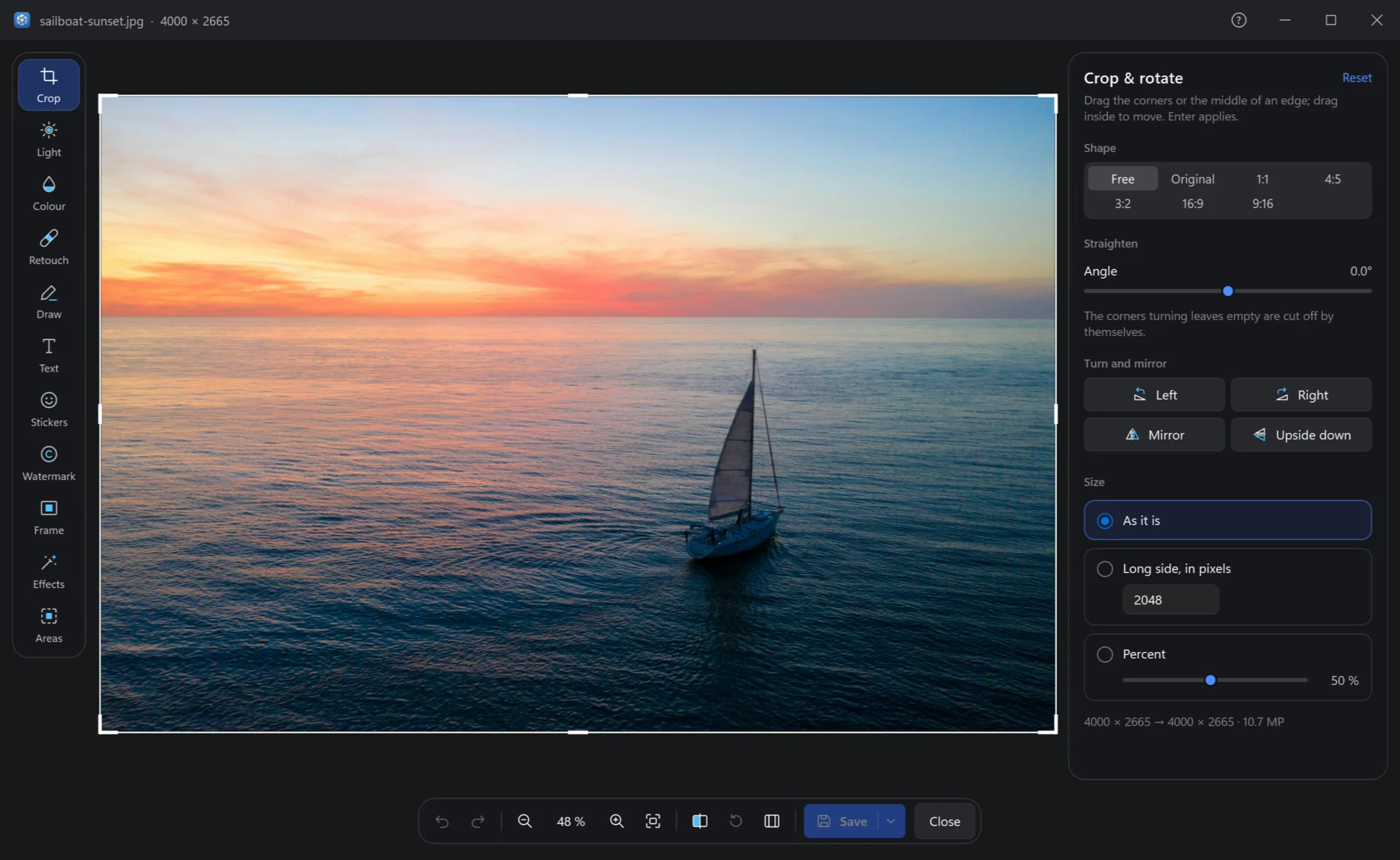
Cropping
The whole photo is shown with a frame over it. Drag a corner, or the middle of an edge, to move that side; drag inside to move the frame. While you drag, lines in thirds help place what matters; outside the frame is dimmed. Enter leaves cropping, and the photo is shown cropped.
Shape keeps the frame to a shape while you drag:
| Shape | Good for |
|---|---|
| Free | Any shape. |
| Original | The photo's own shape, only smaller. |
| 1:1 | A square: profile pictures, a grid of posts. |
| 4:5 | The tallest a photo can be in a feed. |
| 3:2 | The shape of most cameras' photos and of prints 10 × 15. |
| 16:9 | A screen, a wallpaper, a video's frame. |
| 9:16 | A phone's screen: stories and reels. |
Straighten
Drag Angle until the horizon or a wall is level. The corners the turn would leave empty are cut off by themselves, so there is never a white wedge.
Turn and mirror
Left and Right turn the photo a quarter; Mirror flips it left to right, Upside down top to bottom.
Size
As it is, a long side, in pixels, or a percent of it. Under the choices, what the photo becomes: 4000 × 2665 → 2048 × 1365 · 2.8 MP. Made smaller, it gets a light sharpening after it, as Settings say.