The drop panel
Drag a picture from anywhere — Explorer, the desktop, a mail — and drop it on what should happen to it. No app to open first; the result lands next to the original.
In the app: The small ? at the panel's foot opens this page.
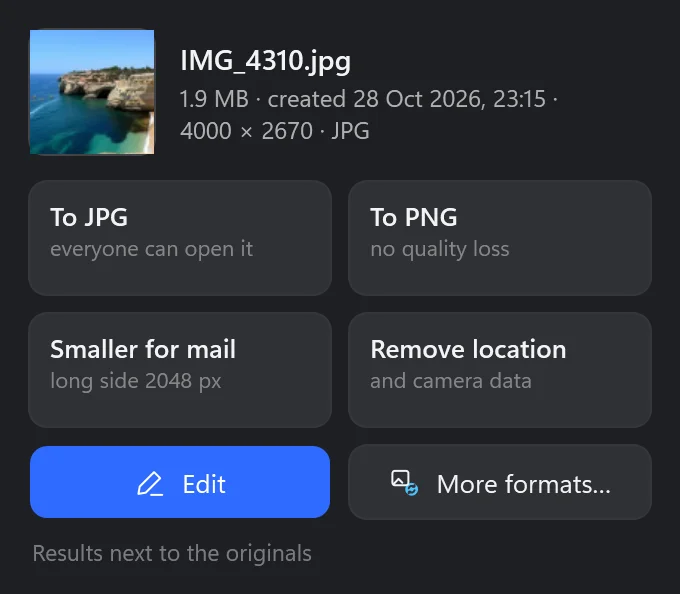
Two ways to bring it out
- Hold Ctrl while dragging a picture: the panel opens beside the pointer, with what the file is — its size, when it was made, its size in pixels and format — and what can be done with it. Let the key go and it closes.
- Drag to the right edge of the screen: the shelf comes out there, the same panel, and waits for the drop.
Drop the picture — or several — on an action.
What it can do
| Action | What you get |
|---|---|
| To JPG | A JPG everyone can open: a HEIC from an iPhone, a WebP from a website, a PNG screenshot. |
| To PNG | A PNG, without any quality lost. |
| Smaller for mail | The picture with its long side 2048 pixels (or as set): small enough to send, large enough to look at. |
| Remove location | A copy without the place it was taken and the camera's data — what is removed. |
| To PDF | With several pictures: one PDF, a page for each. |
| Edit | The picture in the editor. |
| More formats… | Convert, with the pictures in it: any of 13 formats, any size. |
The results go next to the originals, with a short note when they are done. The originals are never changed.
Settings for the panel
In Settings → Drop panel:
| Setting | What it does | As it comes |
|---|---|---|
| Panel on a key while dragging | The key to hold: Ctrl, Shift or Alt — or off. | Ctrl |
| Shelf at the screen edge | Dragging to the right edge of the screen brings out the shelf. | On |
| Where the panel opens | Beside the pointer — quickest to reach — or at the right of the screen, where it never covers what you drag over. | Beside the pointer |
| Smaller for mail | The long side: 1280, 1600, 2048 or 2560 pixels. | 2048 |
A JPG is written at the quality in Settings → General → JPG quality.