How to view PSD files without Photoshop
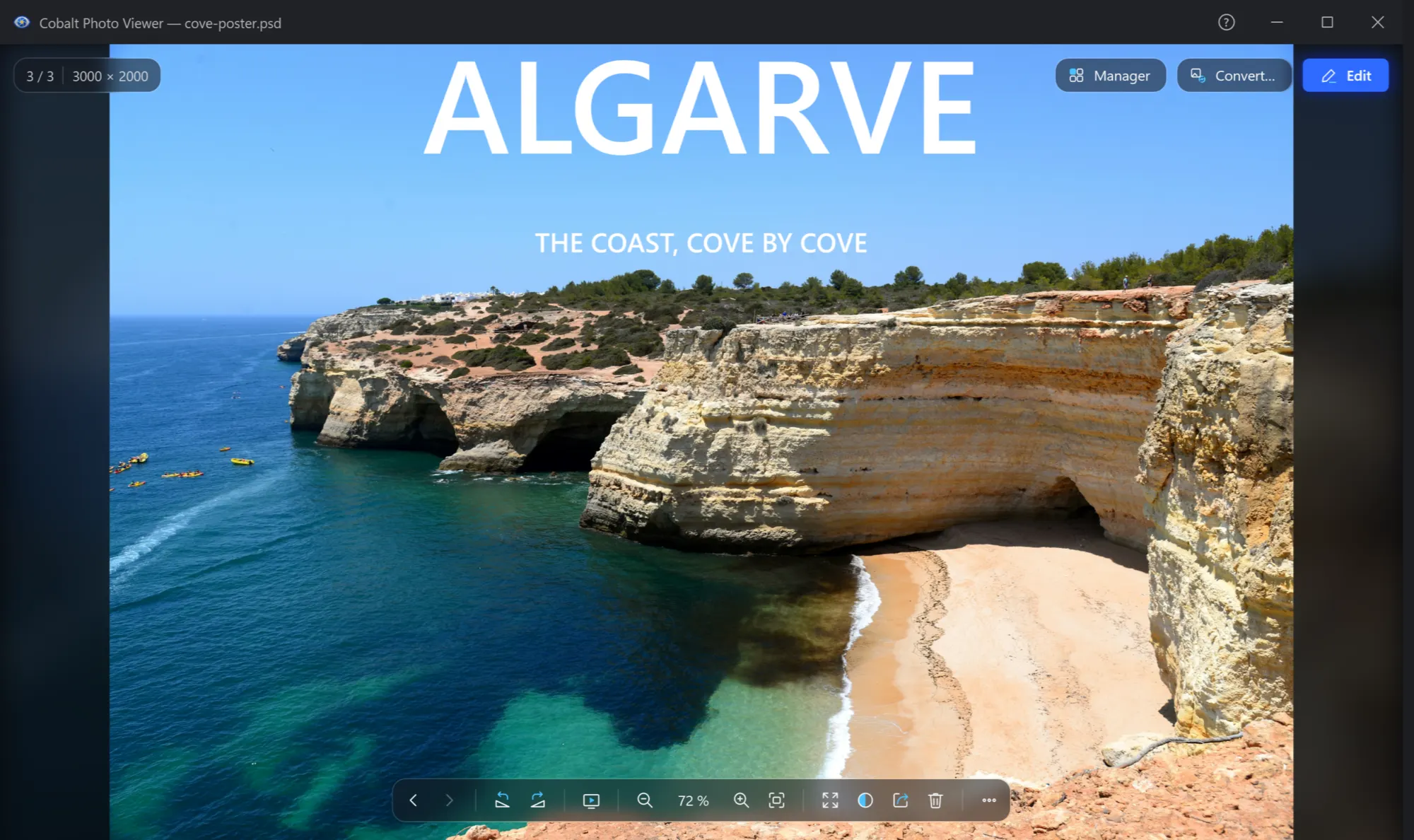
Install Cobalt Photo, free from the Microsoft Store, and open the PSD like any other picture. You see the finished image at once, without Photoshop.
Measured on our test PC.
Open a PSD file in three steps
- Get Cobalt PhotoInstall it from the Microsoft Store. The viewer is free, forever.
- Open the fileIn File Explorer, right-click the file and choose Open with → Cobalt Photo Viewer.
- Look through the folderPress ← or → for the next picture. The neighbours are already read, so it appears at once.
Want a double click to do it? Make Cobalt Photo the app for these files. If Photoshop is installed, PSD files keep opening in it until you choose otherwise.
See PSD thumbnails in File Explorer
On its own, File Explorer shows an icon for a PSD. With Cobalt Photo installed, it shows the picture, at every size of its view. Press Alt+P to see it larger in the preview pane. Both are free: Thumbnails in Explorer.
What to expect
Cobalt Photo shows the flattened image Photoshop saves in the file. It does not read or edit layers.
The file was saved without Maximize compatibility, so only a small preview is inside it. Save it in Photoshop with that option on to see it whole.
32-bit (HDR) documents do not open. CMYK documents do, with colours close but not exact, because their colour profile is not applied.
When you need something else
| You want to | Use |
|---|---|
| Look through PSD files quickly | Cobalt Photo Viewer, free |
| Save a PSD as JPG, PNG or WebP | Cobalt Photo Pro, 14 days free |
| Change layers | Photoshop, or the free GIMP and Photopea |

Open your PSD files now
The viewer is free forever. No ads, no time limit.