The Convert window
Pictures in on the left, a format in the middle, its options on the right — and before you start, how much space the result will take and where it goes.
Ta strona nie jest jeszcze przetłumaczona, dlatego wyświetla się po angielsku.
Open Convert with Convert… in the viewer or the manager (Ctrl+E, with the pictures chosen), or ☰ → Convert… in the manager; then drop more pictures on it, from anywhere.
Every part of it

- The pictures, each with its size in pixels and in bytes. Point at one and its × takes it off the list.
- More pictures: drop them here, or click to choose them.
- Everyday formats. JPG, PNG, WebP and PDF — what most pictures need.
- More formats. AVIF, JPEG XL, HEIC, GIF, TIFF, BMP, ICO, JPEG XR, TGA — each with what it is for. Formats and quality.
- About the format chosen: what it is good at, and what opens it.
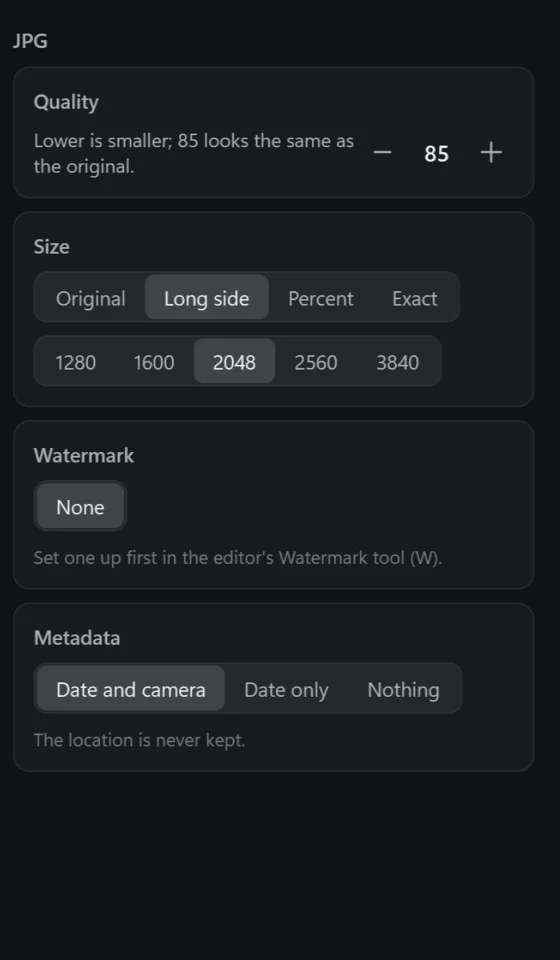
- Quality. Lower is smaller; each format's own scale is said under it.
- Size. As they are, a long side, a percent, or an exact size — see below.
- Watermark. The one you set up in the editor, on every picture.
- Metadata. Date and camera, date only, or nothing. The location is never kept.
- How much. The pictures, their size now, and about how much they will take after.
- Where they go. Next to the originals, or a folder — see below.
- Convert — the button then shows how far it has got.
Size
| Size | What it makes |
|---|---|
| Original | As they are. |
| Long side | The longer side 1280, 1600, 2048, 2560 or 3840 pixels, the shape kept; a smaller picture is not made bigger. |
| Percent | A share of each picture's size. |
| Exact | Exactly so wide and so high. If the shape differs: Crop to fill — cut from the middle, for avatars and previews; Fit inside — the shape kept, one side may come out shorter; Stretch — pulled to it, squashed if the shape differs. Exact makes a smaller picture bigger. |
Made smaller, pictures get a light sharpening after it — Settings → Converter → Sharpen when made smaller.
Watermark and metadata
My watermark puts on every picture the watermark set up in the editor's Watermark tool — text or a logo, where, how big. Without one set up yet, Convert says so.
Metadata: Date and camera keeps when it was taken and with what; Date only keeps less; Nothing keeps nothing. Whichever you choose, the place a photo was taken is left out — a converted picture is usually one to share.
RAW files
With a camera's RAW files in the list, a RAW Files card asks how to convert them:
- As the camera made it — the picture the camera put inside the RAW file, with its colours and style. At once.
- Develop anew — from the sensor's data: the whole frame, more left in bright skies and dark corners, as a TIFF in 16 bits. A second or more each; the colours are neutral, not the camera's style. Then: White balance as shot or auto, Less noise off, low or strong, Colours neutral or vivid, and Bring back a bright sky — what the camera's picture lost in the brightest parts.
A shot with the camera's JPEG beside its RAW file: as the camera made it, that JPEG is converted; developed anew, the RAW file.
Where the files go
The button at the bottom says where, and changes it:
- Next to the originals — each picture beside its own, with its new extension. From RAW files into a folder of the format's name there (
JPEG), so it is not taken for the camera's JPEG. - A folder… — all of them into one folder you choose; the folders you used lately are offered too.
- Show the folder — the folder in Explorer.
A name already taken is never written over: the new file gets a number. When it is done, Convert says how many were saved and where.