Remove, heal and clone
A tourist in the frame, a wire across the sky, a spot from the sensor: paint over it, and it is gone — filled from what is around it.
Diese Seite ist noch nicht übersetzt und wird daher auf Englisch angezeigt.
Open Retouch on the left of the editor and choose what the brush does:
| Brush | What it does | Best for |
|---|---|---|
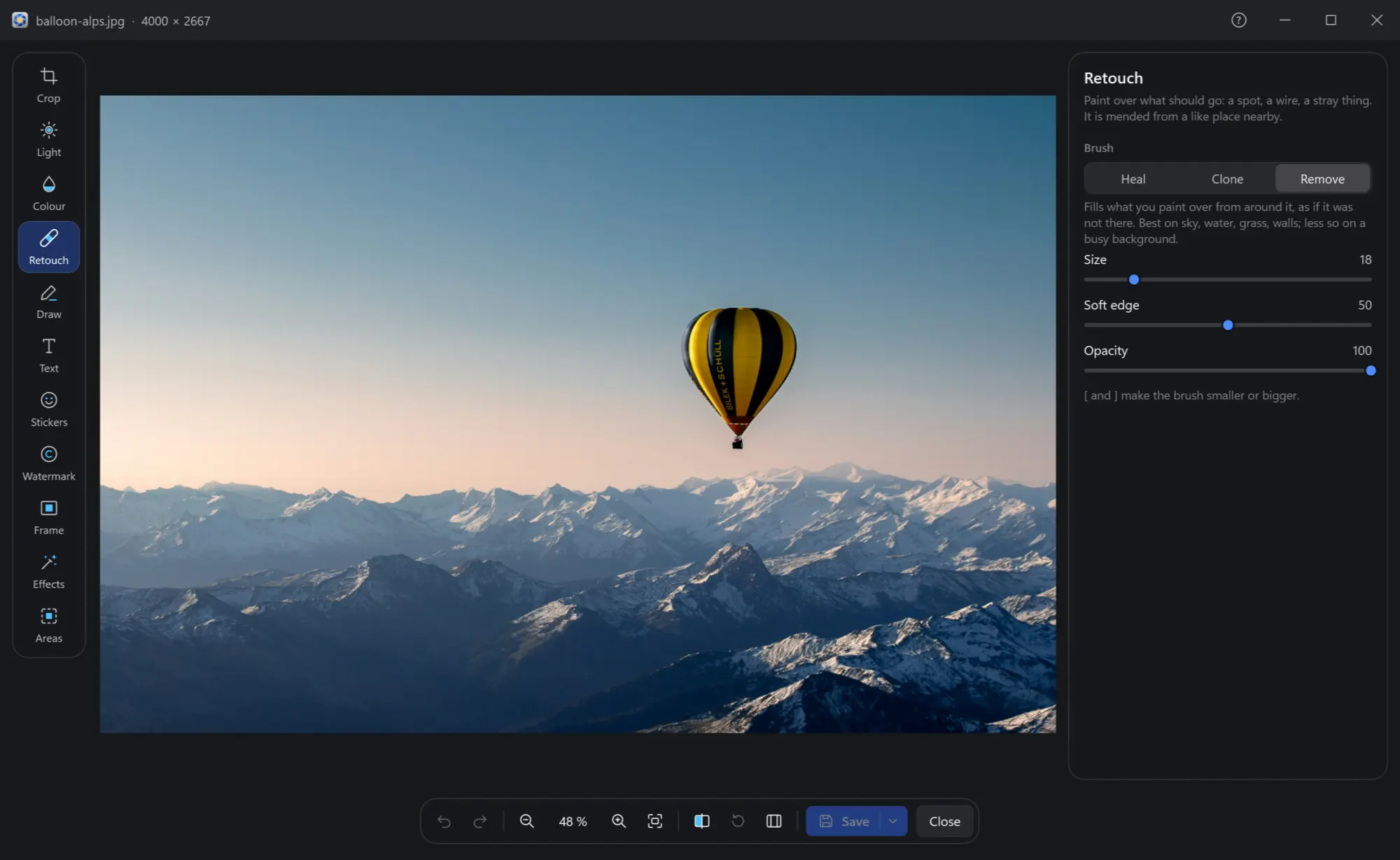
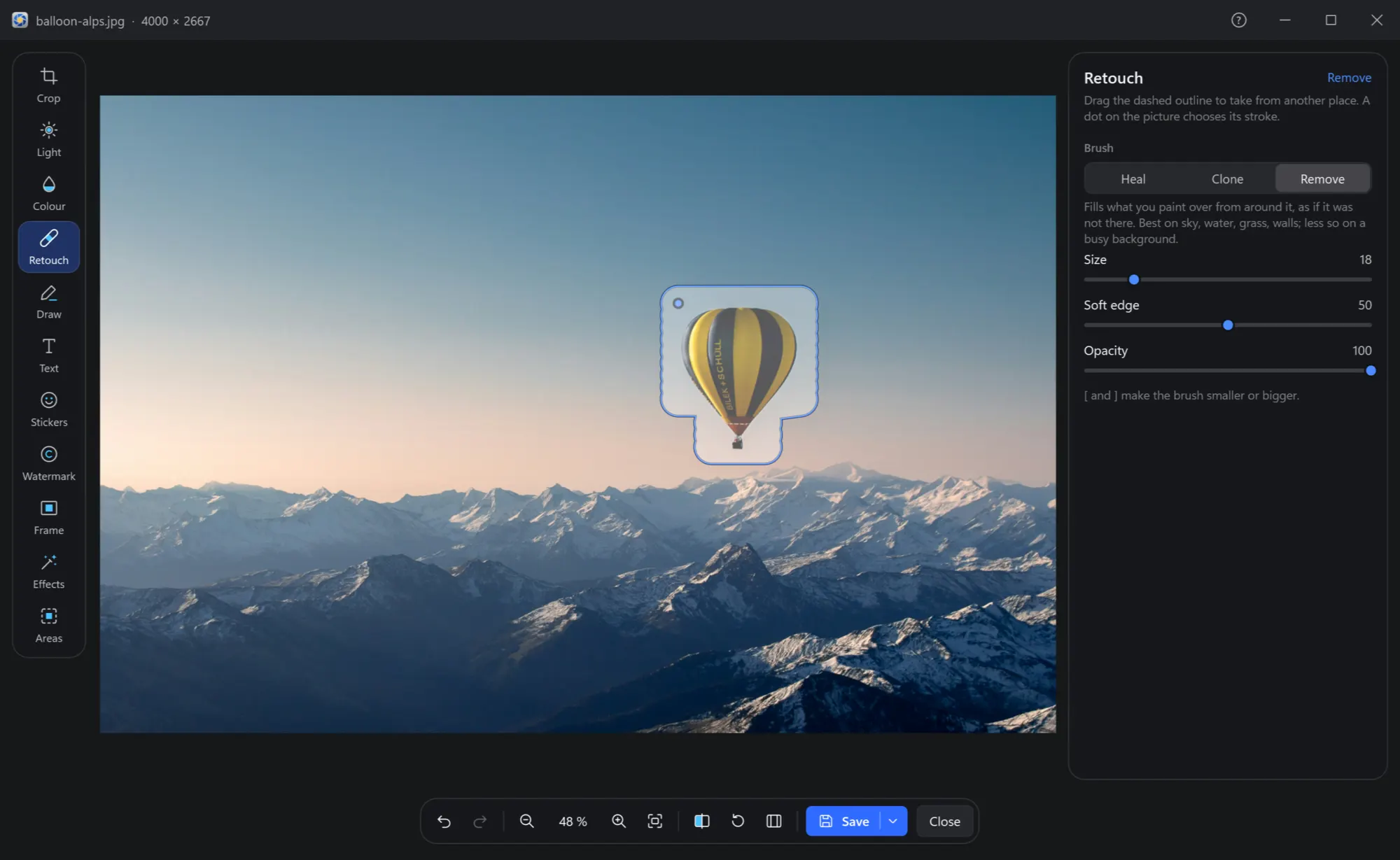
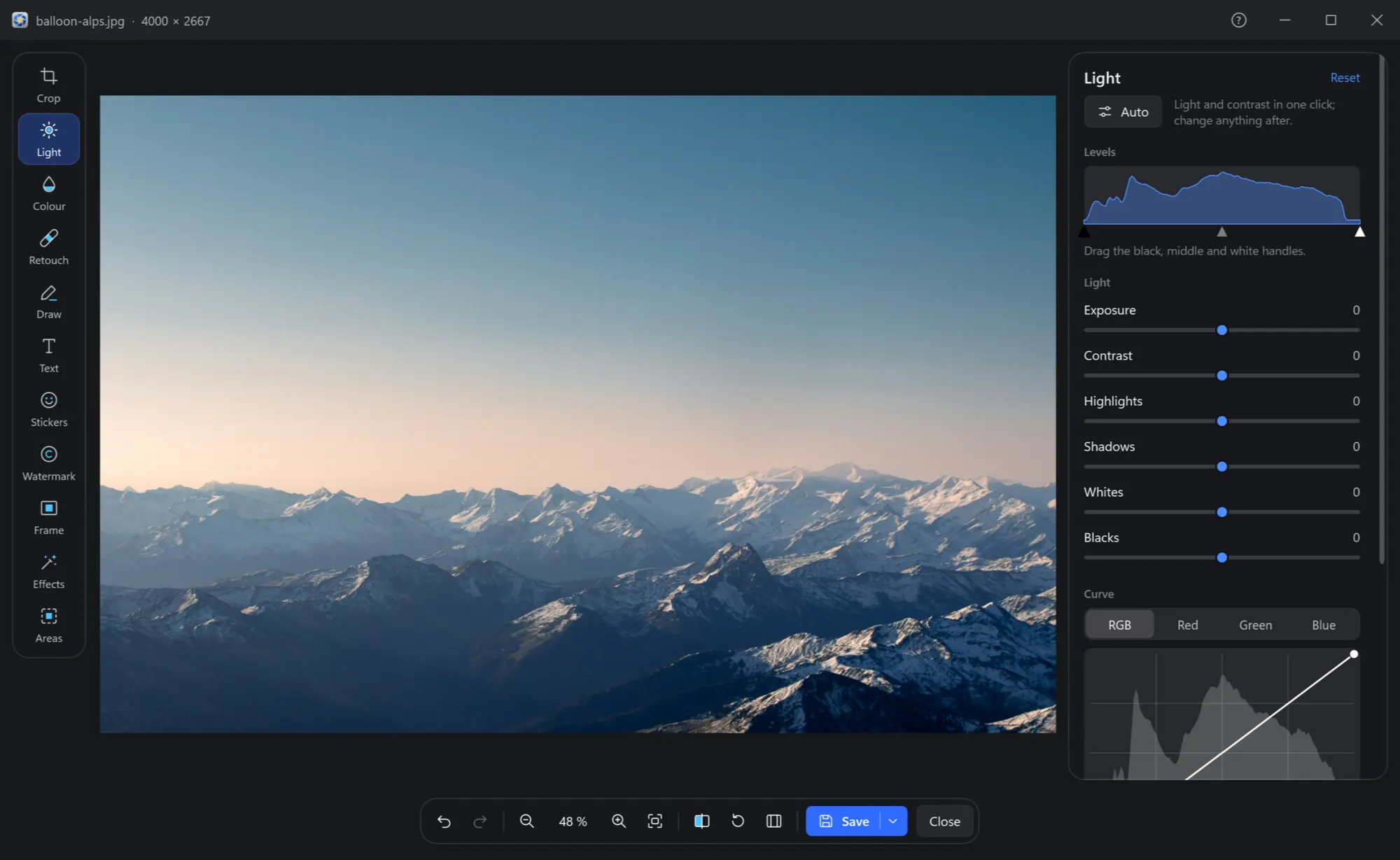
| Remove | Fills what you paint over from around it, as if it was not there. | Sky, water, grass, walls; less so a busy background. |
| Heal | Takes the detail from another place and fits it to the light and colour round the stroke. | Spots, dust, small blemishes, wires. |
| Clone | Copies another place exactly as it is. | Repeating a pattern, covering with something real. |
Removing a thing
Heal and clone
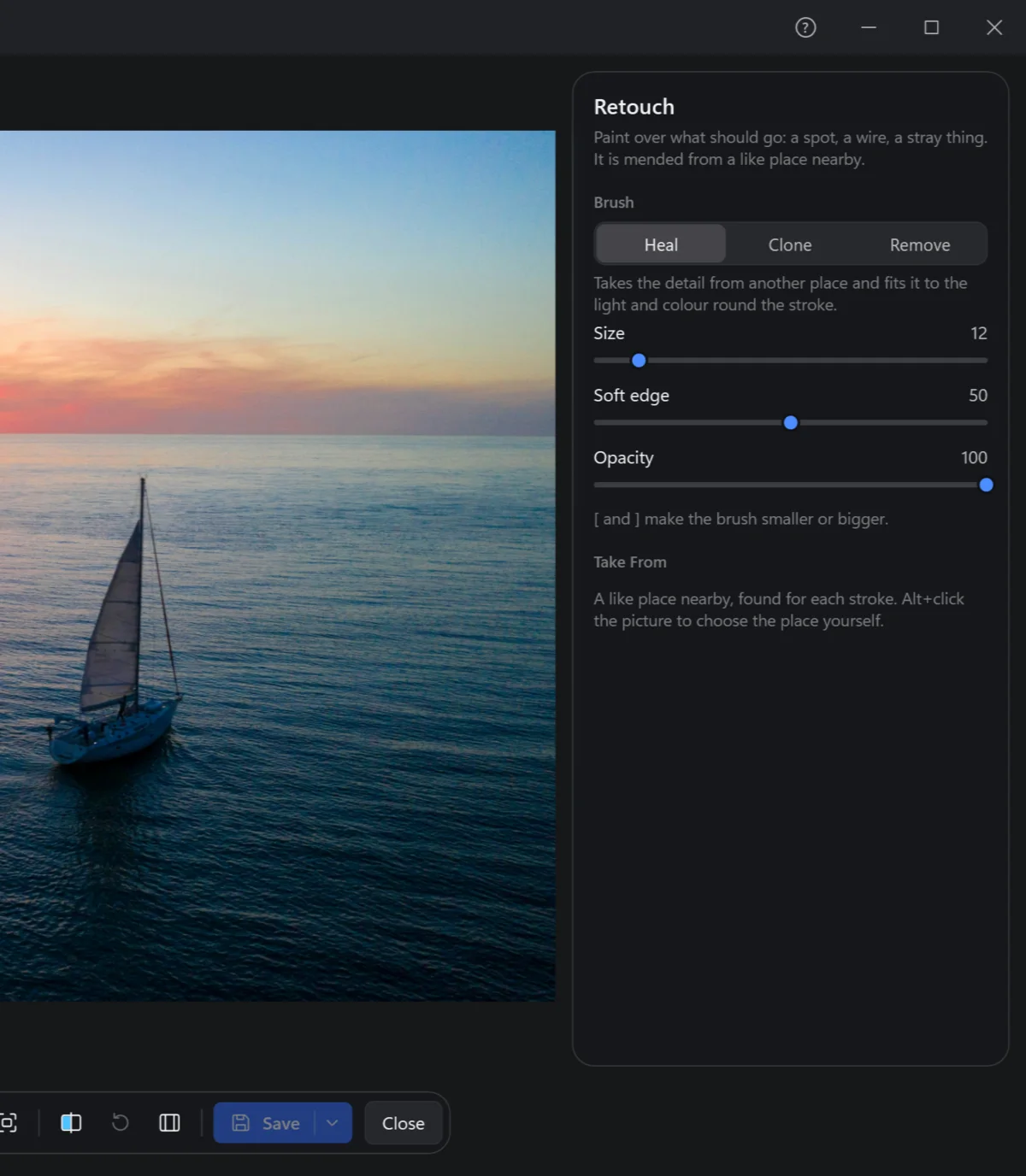
Heal and Clone take from another place of the photo. As it comes, a like place nearby is found for each stroke. To choose the place yourself, Alt+click it: the strokes after it keep the same distance to it, as a clone stamp does.
After a stroke, a dashed outline shows where it took from: drag it to take from another place. A dot on the photo marks each stroke — click one to choose it, Del removes it.
Size, Soft edge and Opacity shape the brush; [ and ] make it smaller or bigger while you work.